Configuring Run Command
Everything you can set on a Run Command step, where the command runs, and how its command line is put together. New to Run Command? Start with the quick start.
Setting up an Integration
You only need an Integration if your script lives in a git repository (e.g. a private GitHub repository). If your script is in the engine's run_command folder, skip to Adding a Run Command action.
An Integration saves a repository URL and an access token so UMAI can pull the repository down when the test runs. Only account admins can add, edit or delete integrations; everyone in the account can use them.
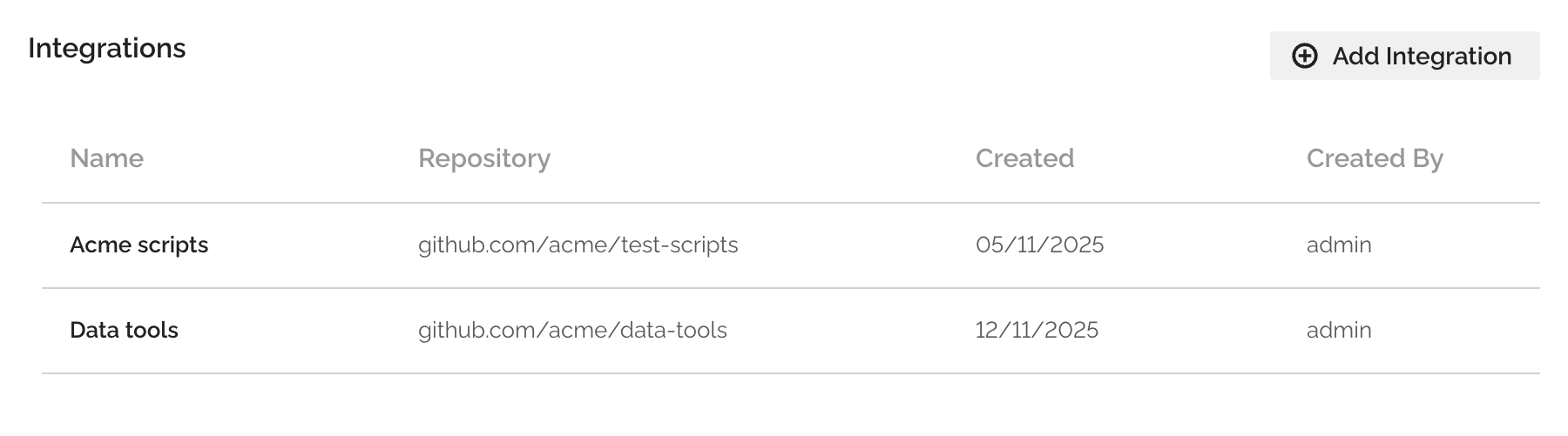
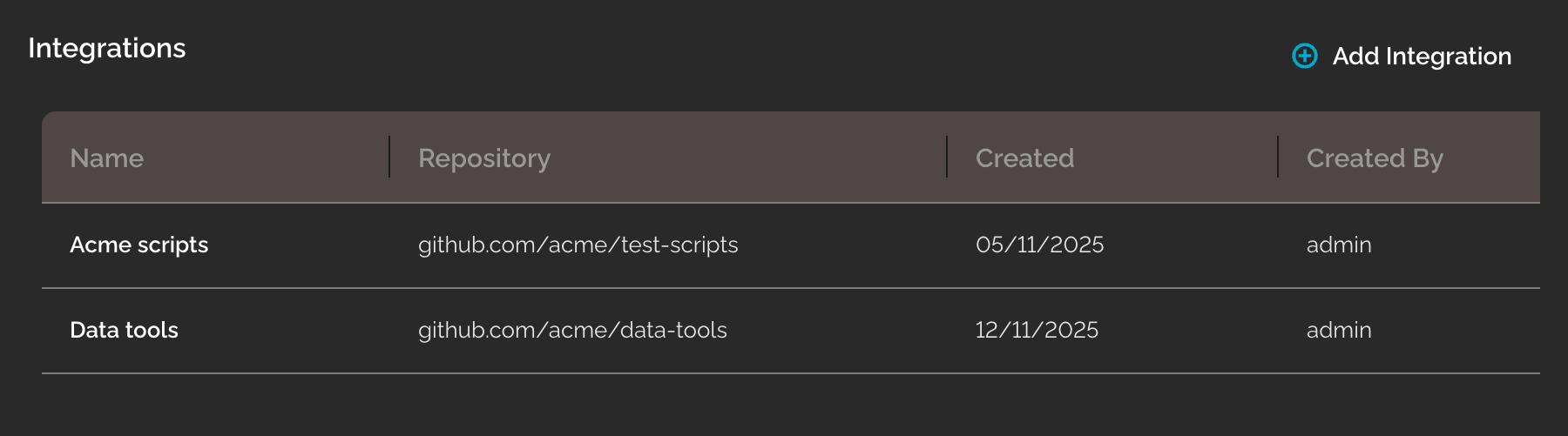
- Click your profile icon and select Account.
- Go to the Integrations tab.
- Click Add Integration.
- Fill in:
- Name - a name you'll recognise later, e.g.
Acme scripts. Names must be unique. - Repository URL - must be
https, e.g.https://github.com/organisation/repository. Don't put a username or password in the URL - the token handles that. - Token - an access token for the repository. Use a fine-grained, read-only token scoped to just this repository, e.g. a GitHub fine-grained personal access token with read access to its contents.
- Name - a name you'll recognise later, e.g.
- Click Add.
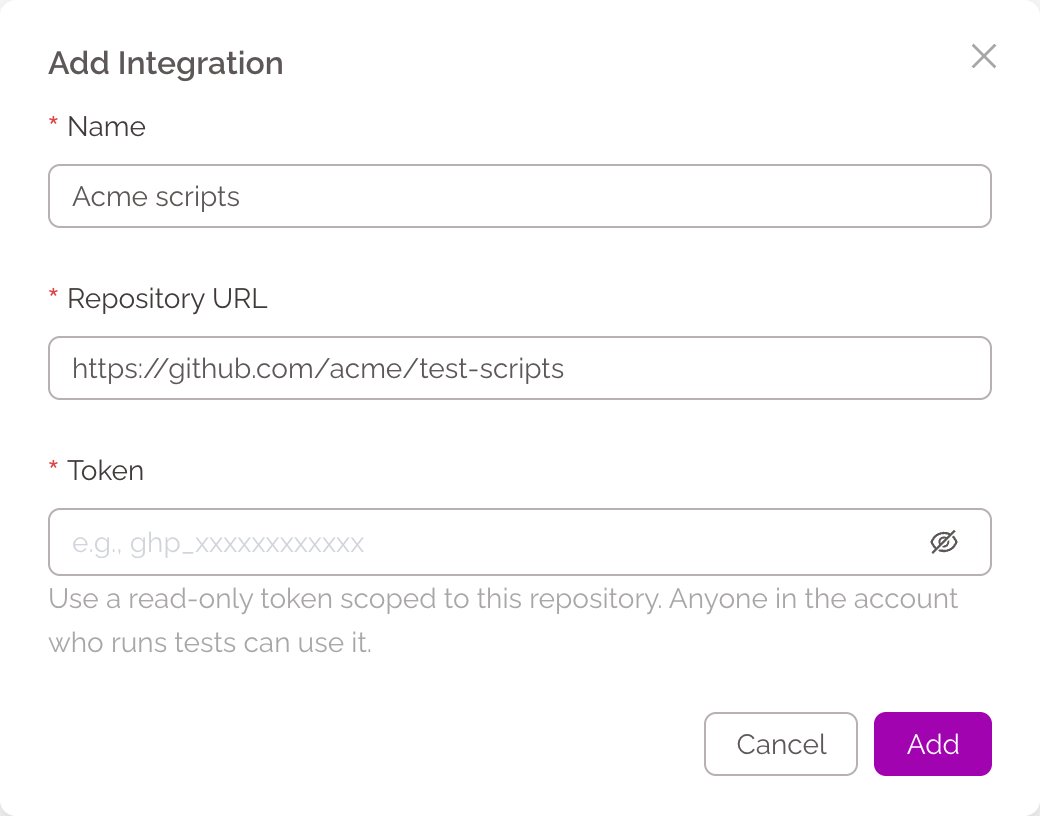
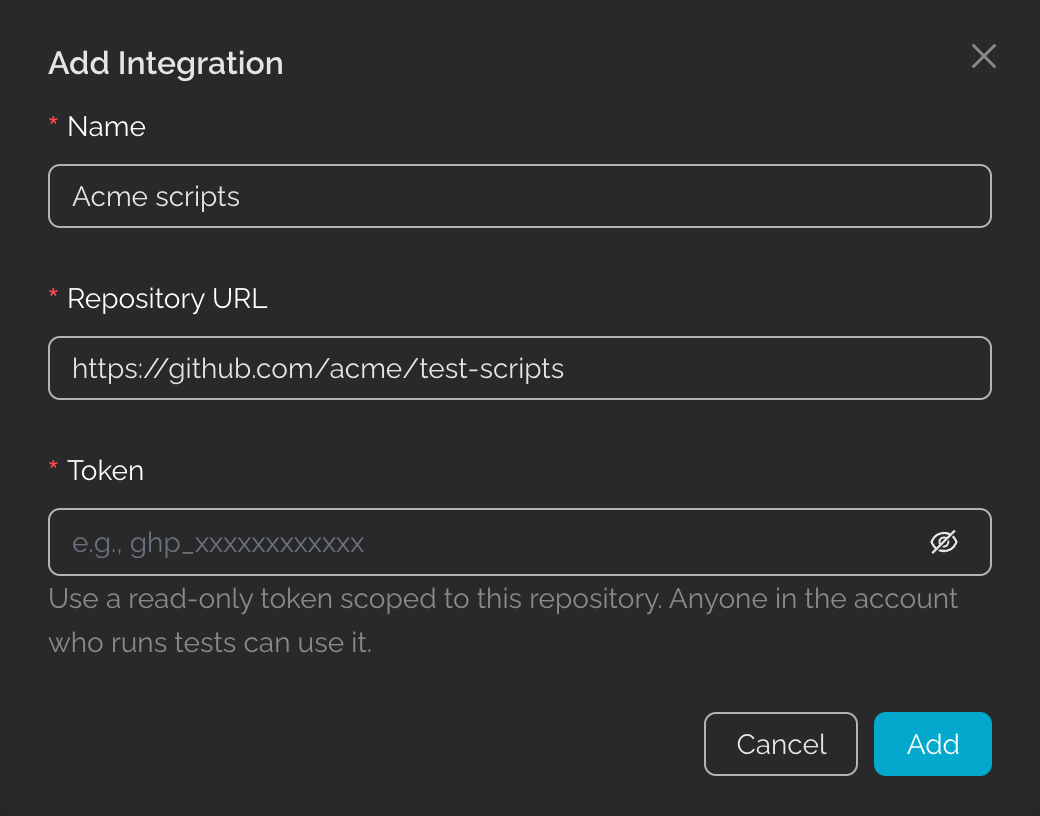
The token is encrypted as soon as it's saved, and the Integrations page never shows it again. The engine needs the token to pull the repository, so anyone in the account who runs tests can use it, and a determined user could read it. That's why the token should give access to nothing but this one repository, read-only. To change it, click Edit on the integration and enter a new token - leaving the token field blank keeps the current one.
Note
UMAI doesn't check the token works when you save it. If the token is wrong or has expired, you'll find out when a test tries to use it.
Adding a Run Command action
- Open the test in the Workbench.
- From the Core Actions section, drag Run Command into the test.
- Select the action to open its configuration panel.
- Under Run from, choose where the command runs:
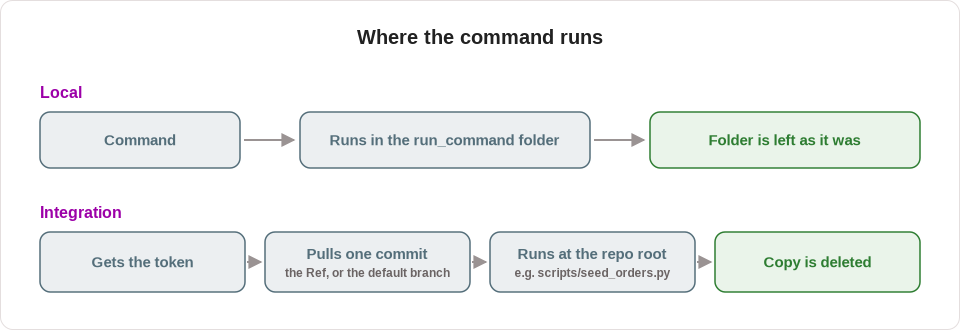
- Local - the command runs in the engine's
run_commandfolder (see Running a command locally). The panel shows where that folder is on your computer. - Integration - choose the Integration whose repository the command runs in. The panel shows the integration's repository URL underneath. Optionally set a Ref - a branch, tag or commit to use. Leave it blank to use the repository's default branch.
- Local - the command runs in the engine's
- Enter the Command - the program or script to run, e.g.
python3 seed_orders.py. - Add any Command line arguments (see Passing arguments).
- Fill in the rest of the settings as needed (see below).
- Save the test.
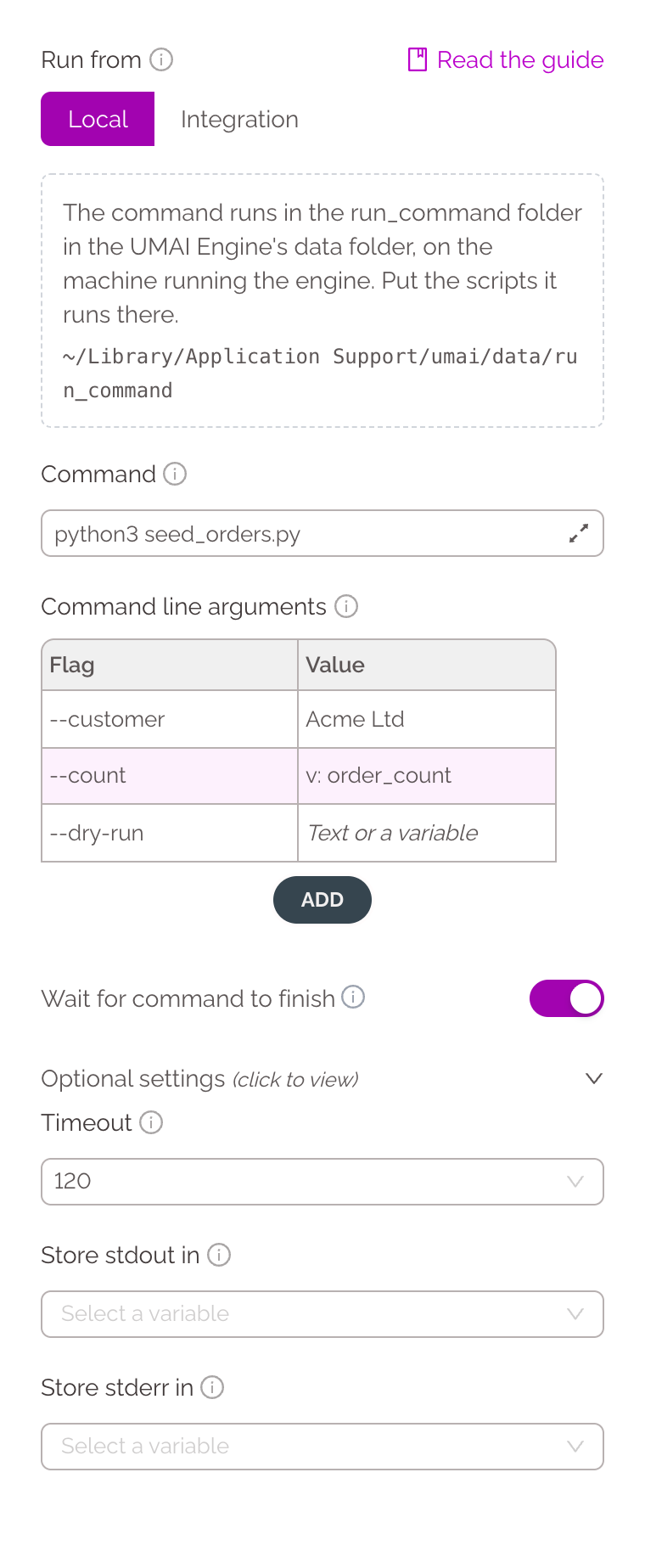
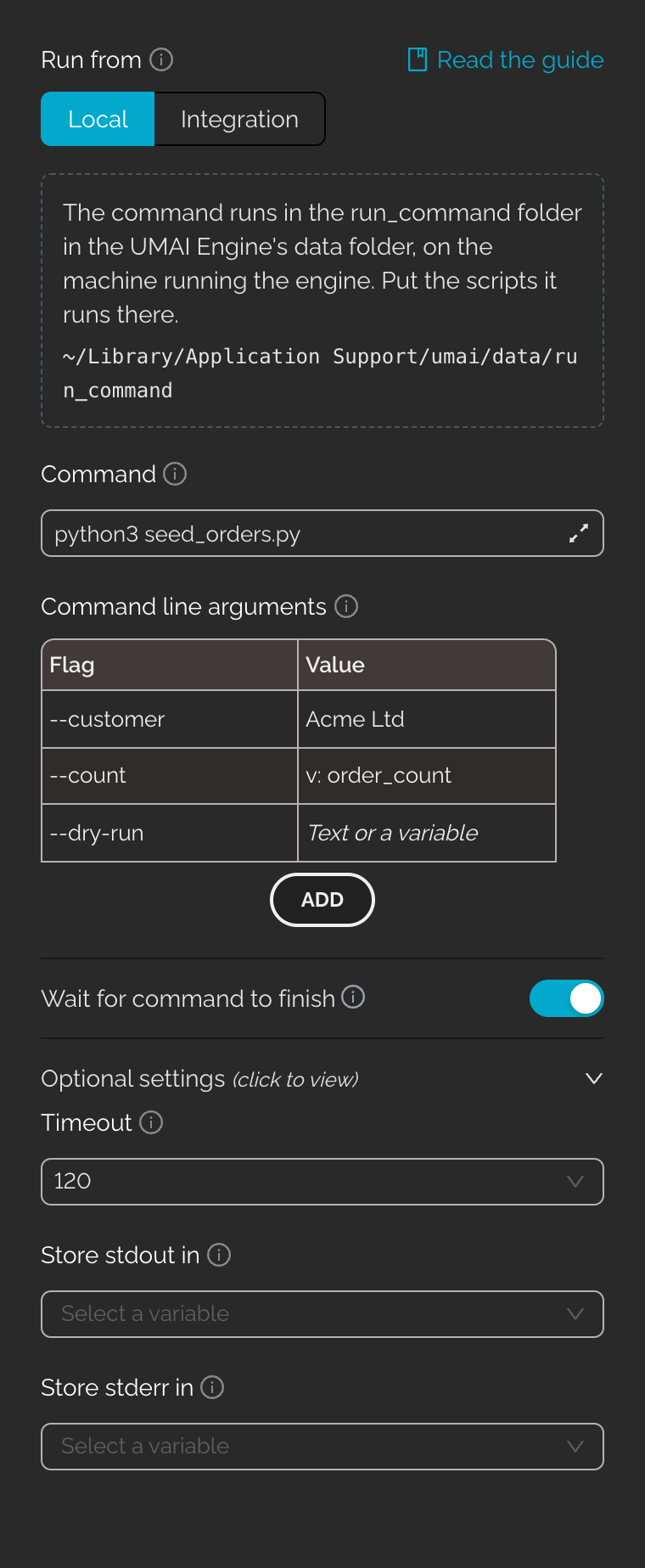
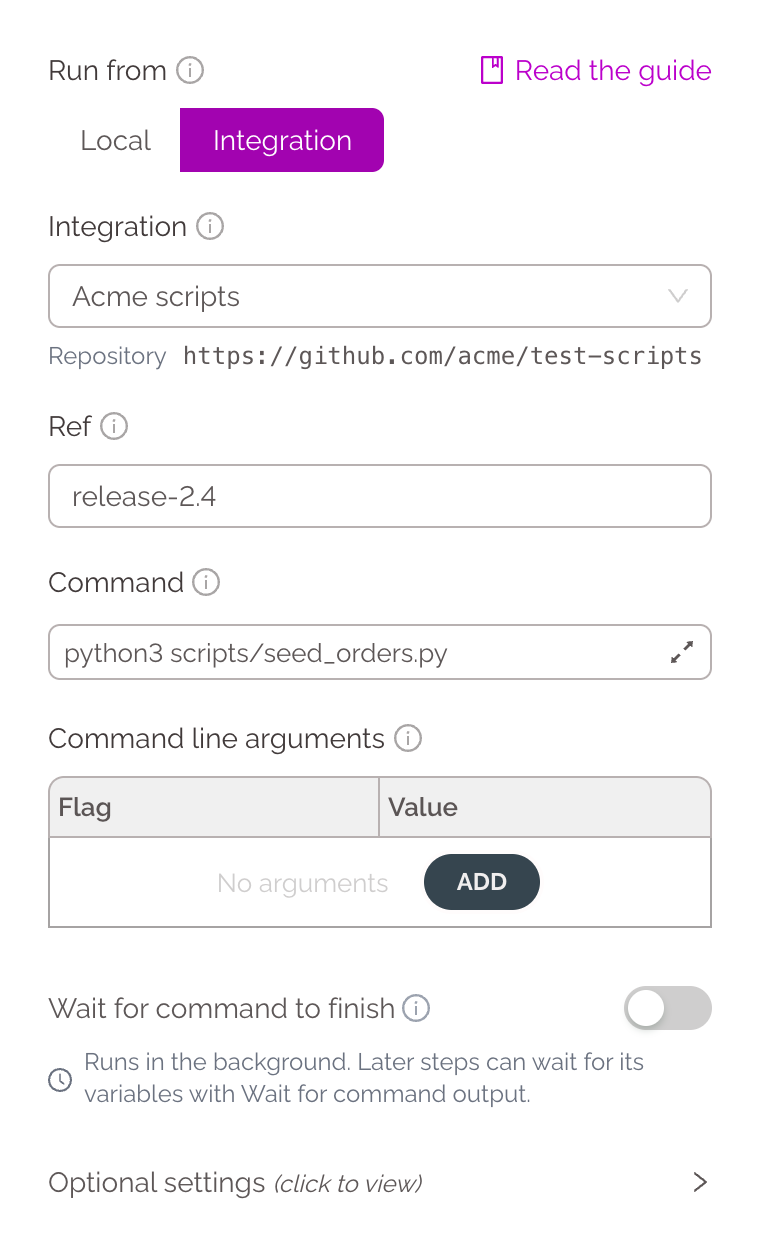
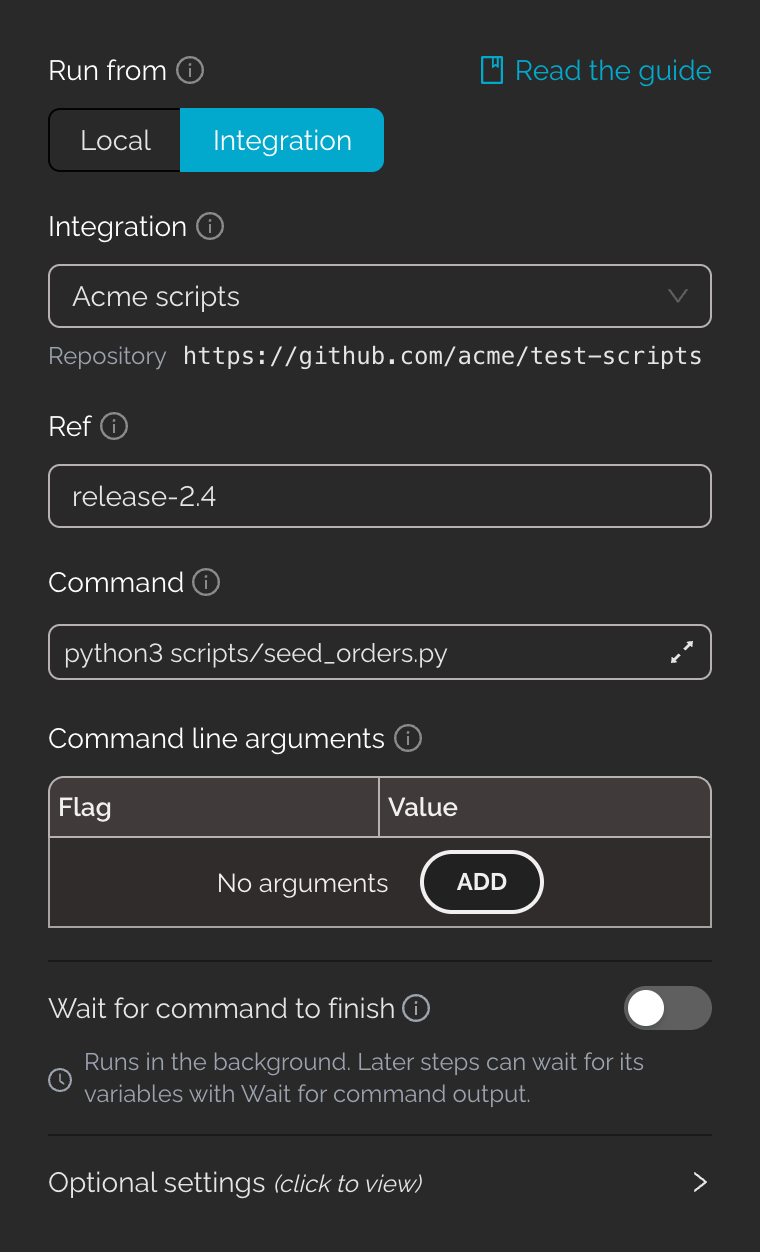
Only the integration is saved with the test, never the token. If there are no integrations yet, the panel links you to Account > Integrations to add one.
Settings
| Setting | What it does | Default |
|---|---|---|
| Run from | Local runs the command in the engine's run_command folder. Integration runs it in a fresh copy of a git repository. |
Local |
| Integration | The integration whose repository the command runs in. Only with Run from set to Integration. | - |
| Ref | Branch, tag or commit to use. Only with Run from set to Integration. | The default branch |
| Command | The program or script to run. | - |
| Command line arguments | Arguments passed after the command, in order. Each row is an optional Flag and a Value. | None |
| Wait for command to finish | On: the test waits for the command to finish before it moves on to the next action. Off: the command runs in the background while the test carries on. | On |
| Timeout | How long the command can run before it's stopped, in seconds. 1 - 3600. Only shown when the test waits for the command. |
3600 (one hour) |
| Store stdout in | A variable to put everything the command printed to standard output into, once it finishes. | None |
| Store stderr in | A variable to put everything the command printed to standard error into, once it finishes. | None |
Command and Timeout can be set using a variable instead of typing a value in. Timeout, Store stdout in and Store stderr in are under Optional settings.
How your command is run
Running a command locally
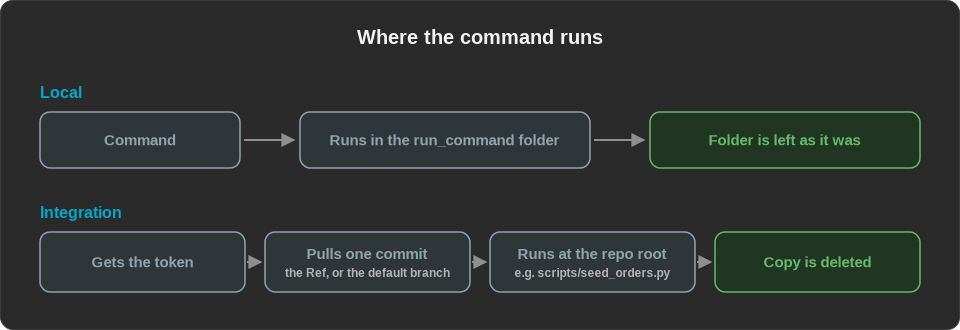
With Run from set to Local, the command runs in the run_command folder in the UMAI Engine's data folder, on the machine running the engine. You can't choose a different folder. The engine creates it when it starts:
| Where the engine runs | Folder |
|---|---|
| Windows | %LOCALAPPDATA%\umai\data\run_command |
| macOS | ~/Library/Application Support/umai/data/run_command |
| Linux | ~/.local/share/umai/data/run_command |
| Pipeline container | /home/browser/.local/share/umai/data/run_command |
Put the scripts your commands run in that folder, and use paths relative to it, e.g. python3 seed_orders.py. For a pipeline, copy them into that folder when you build your image.
Running a command from a repository
With Run from set to Integration, each time the step runs UMAI:
- Gets the integration's token.
- Pulls down a copy of just the commit it needs (the Ref, or the latest commit on the default branch) into a private temporary folder.
- Runs the command with the root of that copy as the working directory.
So your command should use paths relative to the top of the repository, e.g. python3 scripts/seed_orders.py.
The token is never written into the copy or into any log. The copy is deleted as soon as the command has finished with it.
How the command line is handled
The command isn't run through a shell - UMAI splits it into the program and its arguments and starts the program directly. That means shell features don't work:
- pipes (
|), redirects (>,<) and chaining (&&,;) - environment variables like
$HOMEor%USERPROFILE% - wildcards like
*.csv
If you need any of these, start a shell yourself as part of the command, e.g. sh -c "cat data/*.csv | wc -l" or cmd /c "dir > out.txt", or place the relevant logic in a script and execute it.
A few things to know:
- The Command field is split on spaces. Put quotes around anything with a space in it, e.g.
python3 "my script.py". - Backslashes are kept as they are, so Windows paths like
C:\tools\run.exework. - If the program can't be found, give its full path, e.g.
/opt/homebrew/bin/nodeor"C:\Program Files\nodejs\node.exe". On macOS and Linux the engine uses the same PATH as your terminal. - The command can't type into a prompt or wait for keyboard input. A command that waits for input will sit there until it times out.
Passing arguments
Use Command line arguments to pass arguments to the command, one row each. They're added after the command in the order listed.
- A row has an optional Flag (e.g.
--customer) and a Value (e.g.Acme Ltd). The flag goes before the value. - A flag on its own is passed as a switch, e.g.
--verbose. A value on its own is passed as a positional argument. - Either can be text or a variable. A cell holds one or the other, not a mix.
- Each flag and value is passed exactly as it is, so a value with spaces in it doesn't need quotes.
For example, a command of python3 seed_orders.py with these rows:
| Flag | Value |
|---|---|
--customer |
Acme Ltd |
--count |
the order_count variable |
--dry-run |
runs python3 seed_orders.py --customer "Acme Ltd" --count 5 --dry-run when order_count is 5.
Timeouts
- Timeout is in seconds and accepts
1 - 3600. Leave it blank for the full 3600 seconds (one hour). - The timeout counts from when the command starts.
- When it runs out, UMAI stops the command and anything it started. On macOS and Linux the command gets up to 3 seconds to tidy up before it's force-stopped. On Windows it's stopped straight away.
- Pulling down a repository has its own fixed limit of 300 seconds, which happens before the command's timeout starts.
Note
The timeout overrides are for actions that wait on the browser - Run Command only uses its own Timeout setting.