Recording Tests
The Recorder turns what you do in the Interactive Browser into test actions. Click, type and navigate the way a user would, add checks where they matter, and finish the recording to add every action to your test.
The Recorder works inside the browser page itself. It records only what you do in the Interactive Browser and ignores other apps, windows and the operating system.
Before you start
- Recording is available on macOS and Windows. It is not yet available on Linux.
- Record in Chrome, Edge or Firefox.
- The recorder will store every action you perform with the browser, so make use of the pause button and the action list view to prevent unintended actions from getting into your test.
- For when to record and how to keep recordings maintainable, see Test Automation Best Practices.
Start a recording
- Open a test in the Workbench.
- Click Record Actions in Interactive Browser. To add actions partway through a test, start the Recorder from between two existing actions.
- Enter the URL of the website you want to test and click Record.
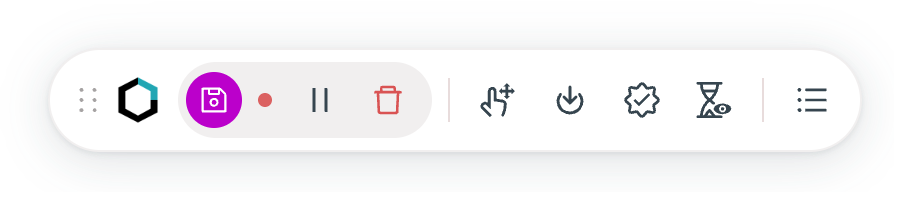
The Interactive Browser opens on that URL and the recorder toolbar appears. You can drag the toolbar anywhere on screen by its handle.
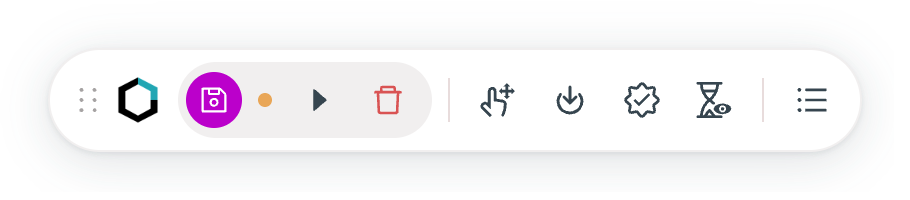
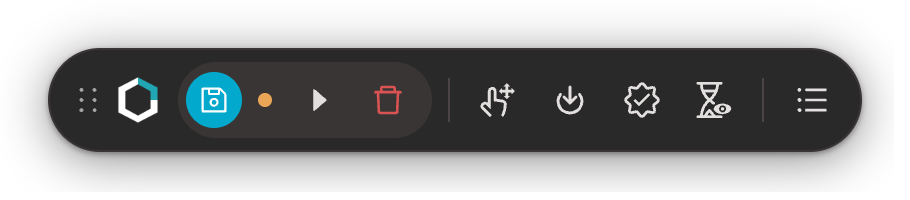
The recorder toolbar
| Control | What it does |
|---|---|
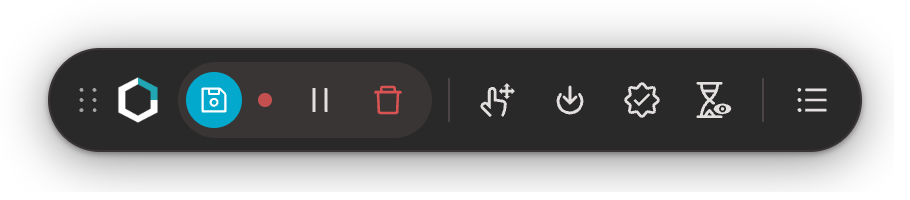
| Finish (pink save button) | Ends the recording and adds every recorded action to your test. |
| Status dot | Red while recording, amber while paused. |
| Pause / Resume | Stops recording temporarily, so you can act on the page without adding actions. |
| Cancel (red bin) | Discards the recording after you confirm. Nothing is added to your test. |
| Hover | Adds a hover over an element you pick. |
| Store | Saves an element's text or attributes into a variable. |
| Verify | Checks an element or part of the page. |
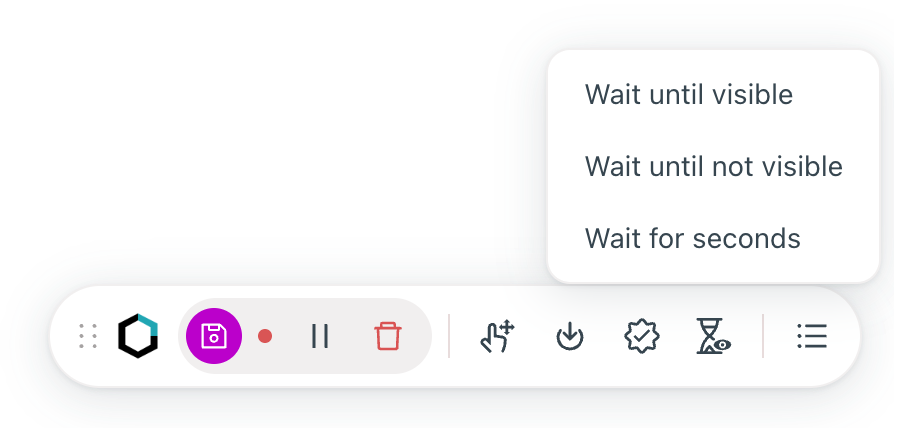
| Wait | Waits for an element to appear or disappear, or for a set time. |
| Recorded actions (list icon) | Shows or hides the action panel. |
What gets recorded
Use the page normally. The Recorder captures each interaction the moment it happens:
- Clicks and typing, with the exact text you type, including capital letters.
- Keys and shortcuts, such as
Enter,EscorCtrl+A, and keys held down while you click. - Form controls: dropdowns, checkboxes, radio buttons, sliders and file uploads.
- Drag and drop, including dragging by an exact point and dropping at an offset.
- Navigation: addresses typed in the address bar, back and forward, and page reloads you make.
- Tabs: opening, switching and closing tabs, including links that open a new tab.
- Embedded content: elements inside iframes and shadow DOM, such as many cookie banners.
Things the page does on its own are not added. A page that reloads itself, or a navigation that a click caused, does not become an extra action.
Review actions as you record
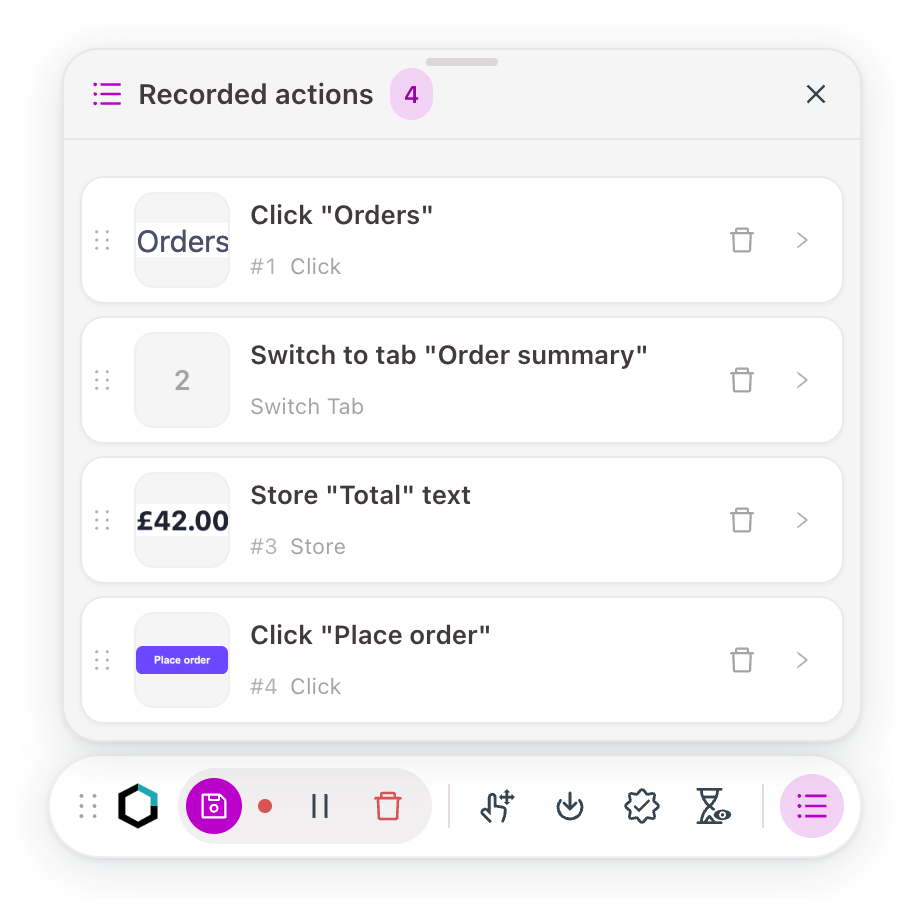
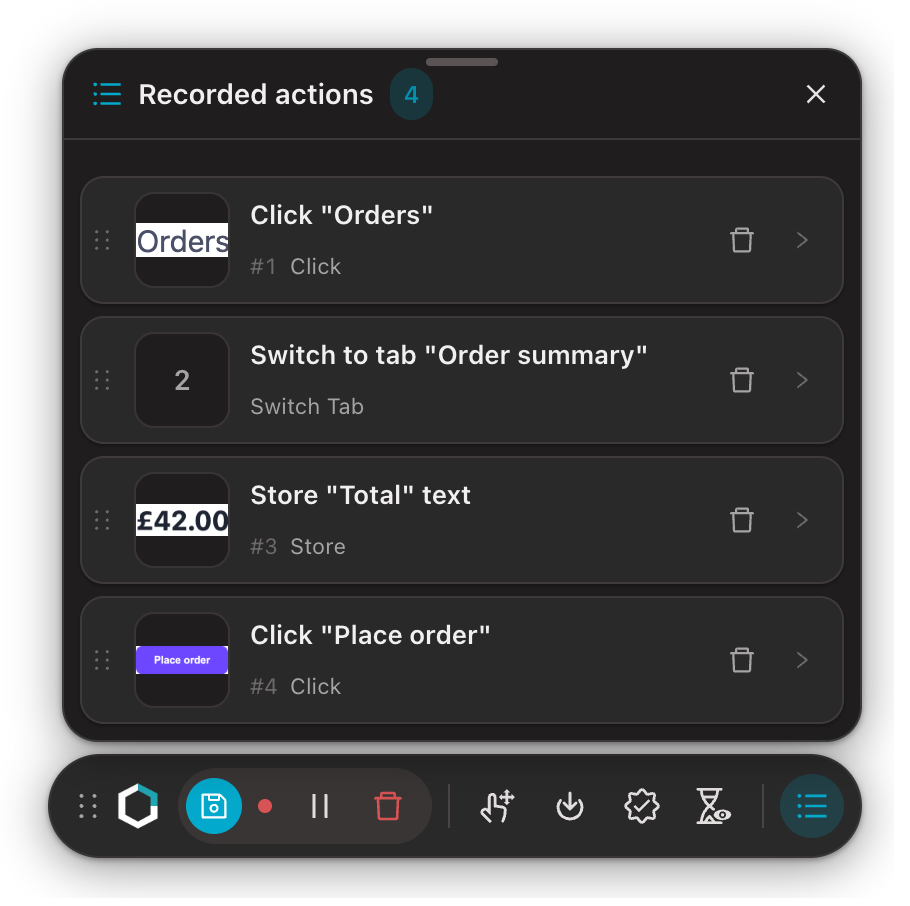
Click the list icon to open the action panel. It shows each action with an image of its element and updates as you record.
- Drag an action by its handle to move it.
- Click the bin on an action to remove it.
- Expand an action to see the details it will run with.
Pause and resume
Click Pause to do something you do not want in the test, such as signing in with a personal account. The status dot turns amber. Click Resume to continue.
Add checks and actions
The Hover, Store, Verify and Wait actions ask you to pick an element. Recording pauses while you pick, and the page shows a banner explaining what to click. Press Esc to cancel the pick.
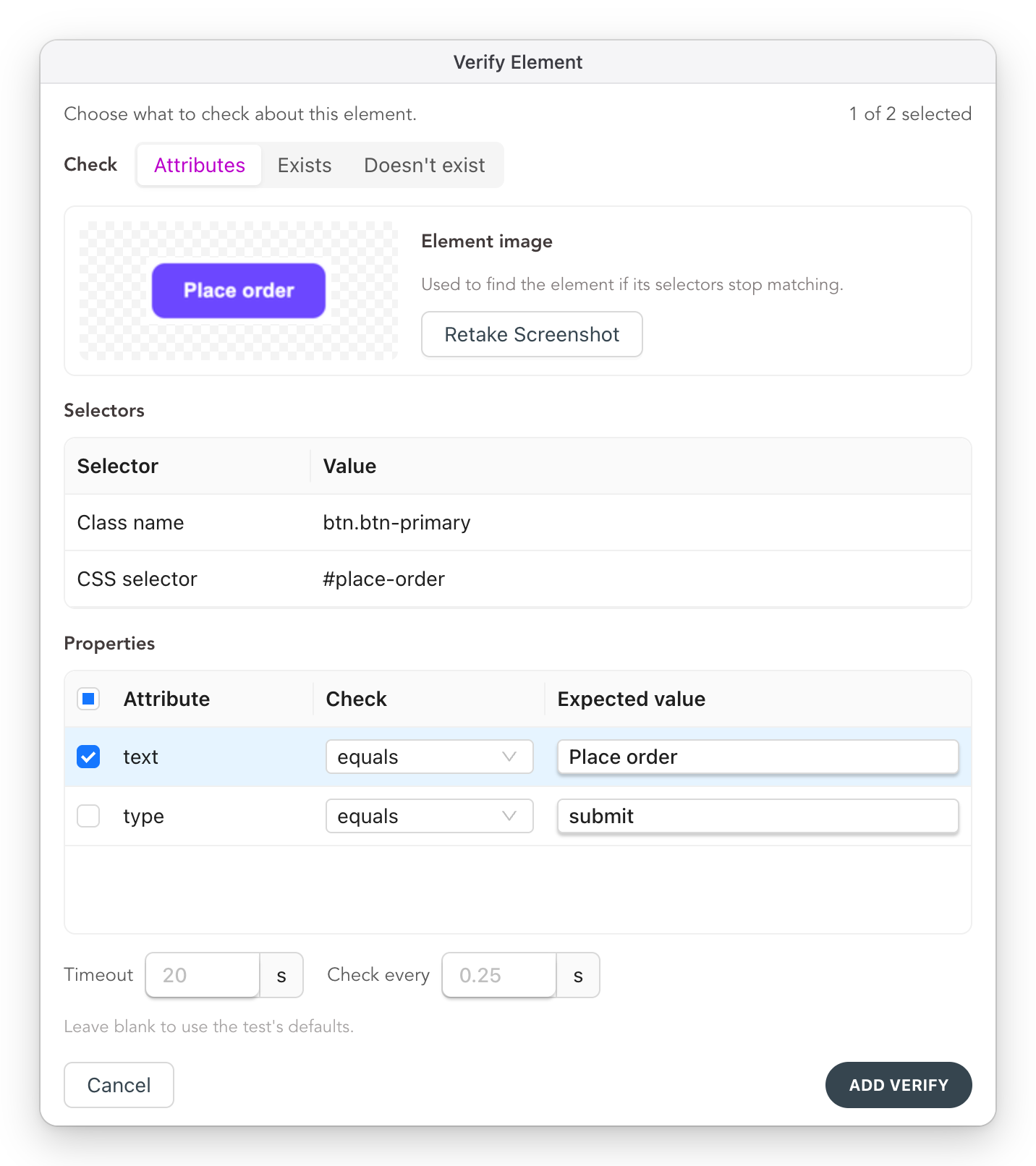
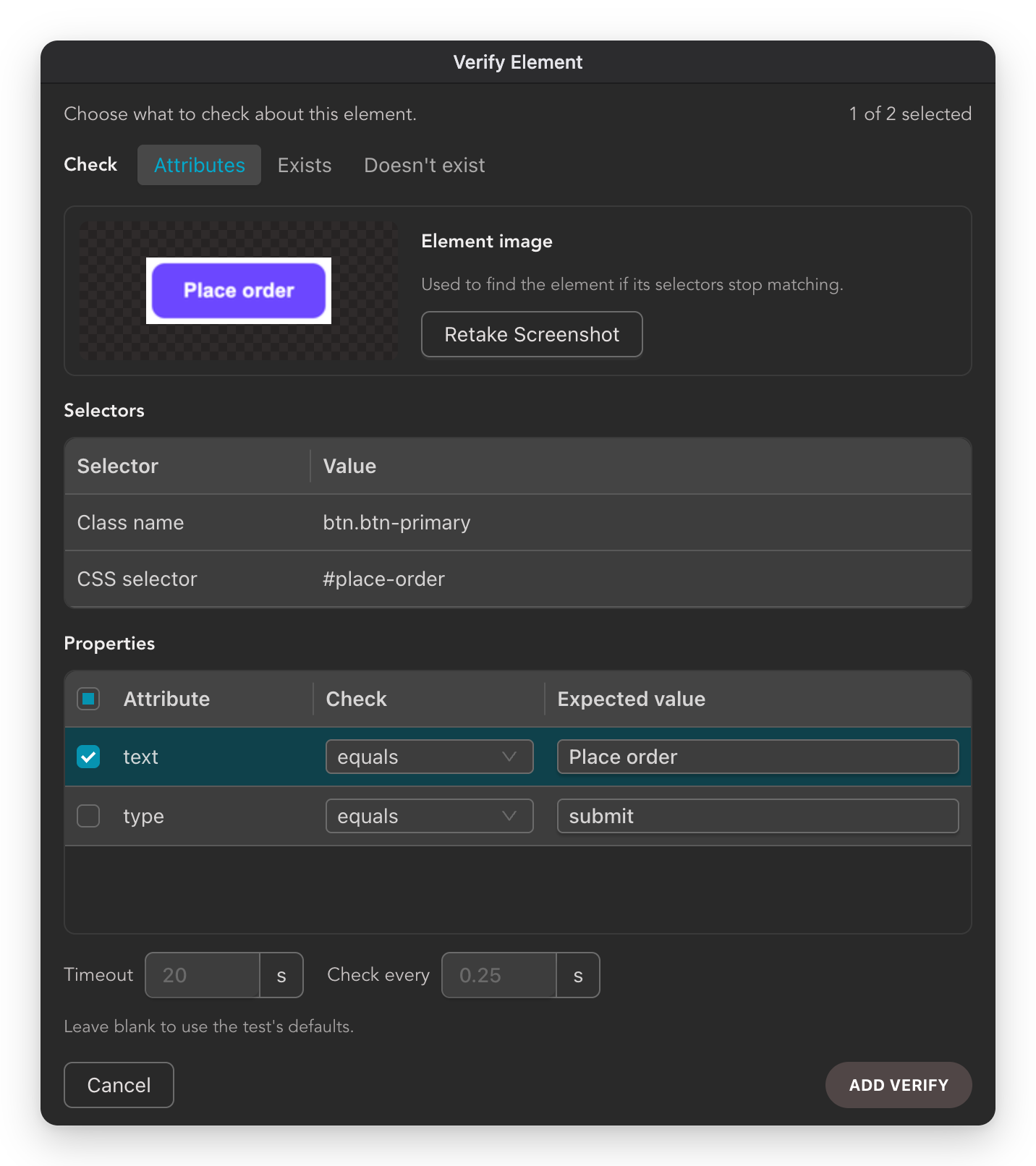
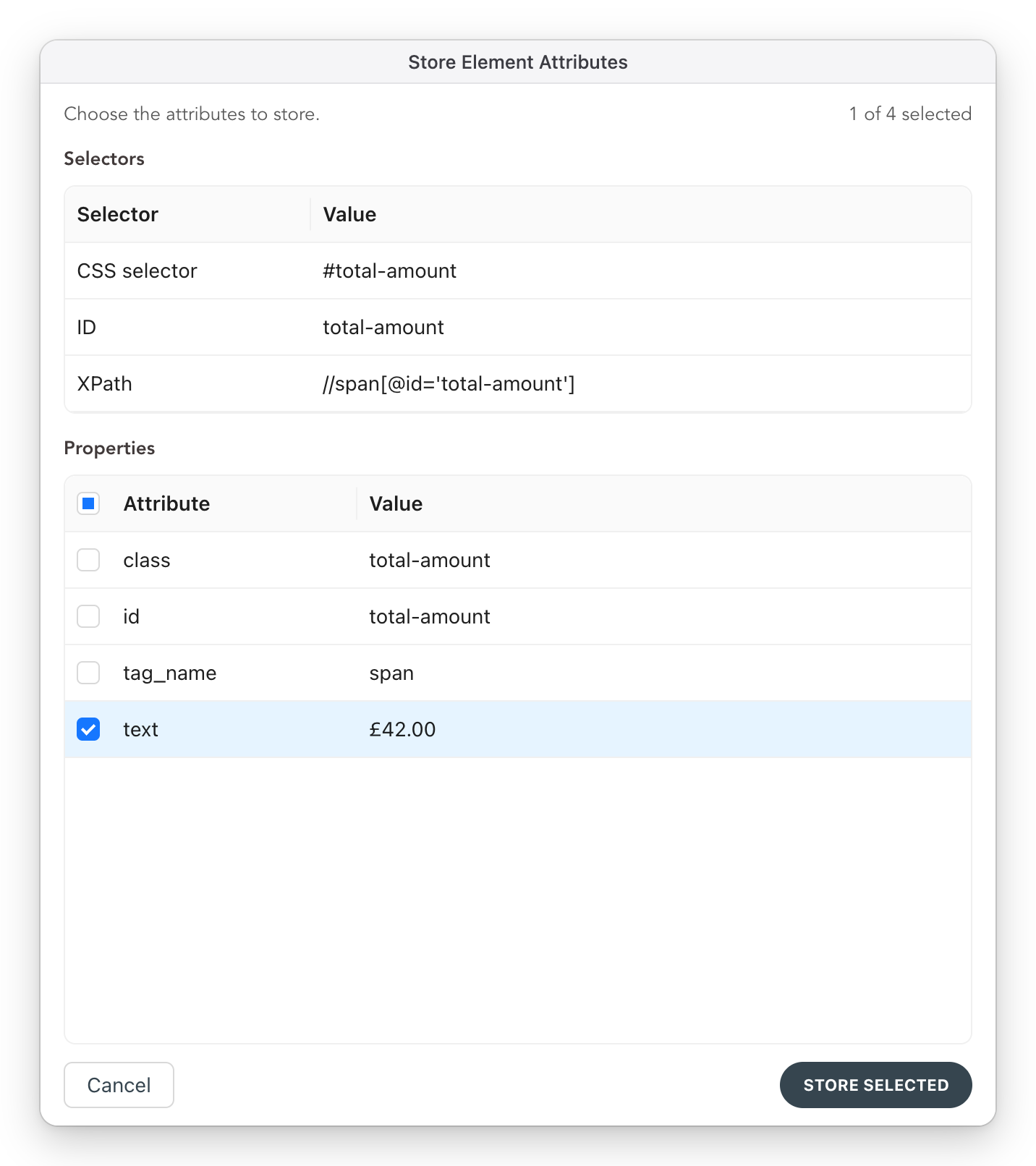
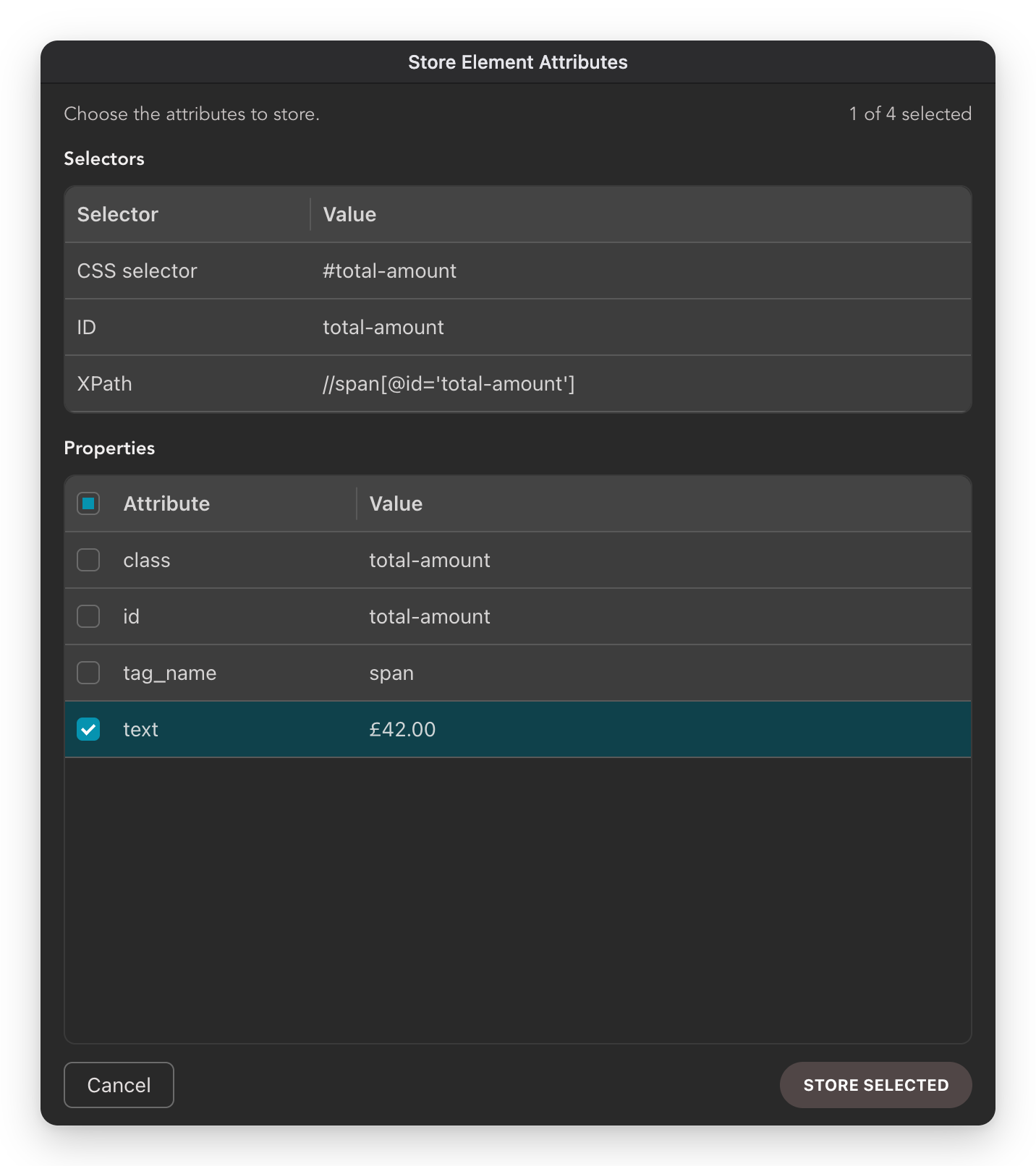
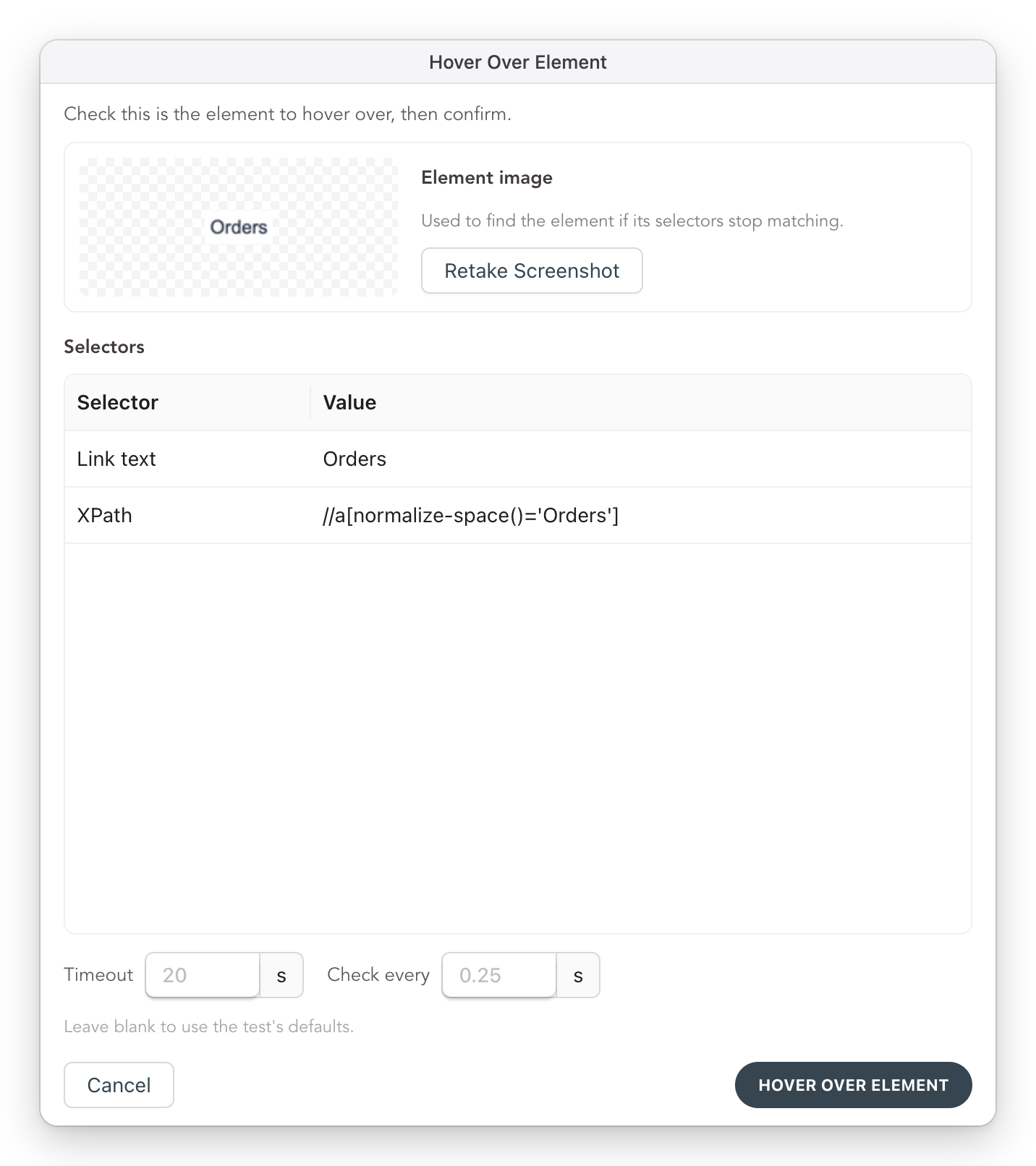
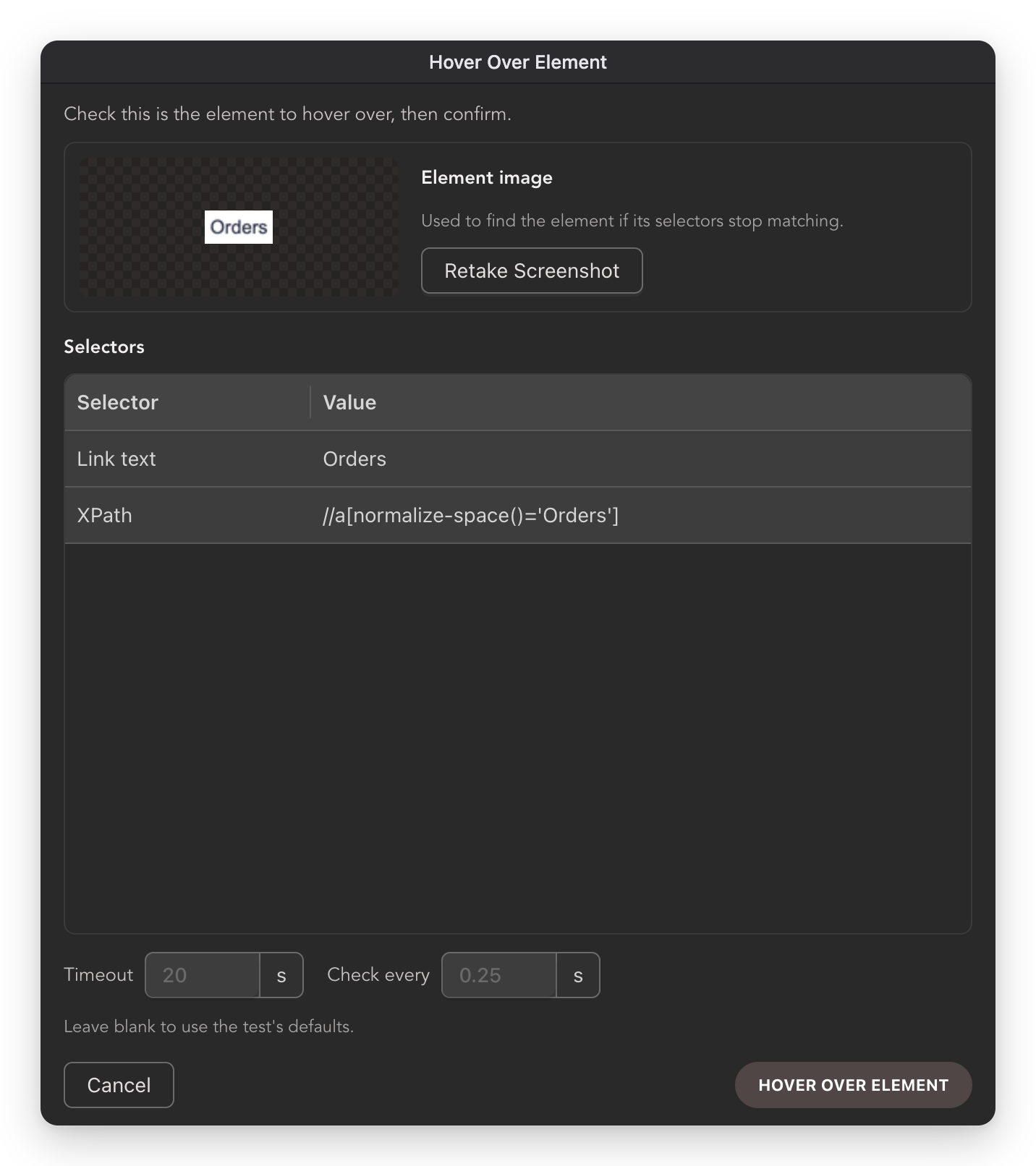
After you pick an element, a window shows its image, the selectors the action will use, and its properties. You can retake the element image, and set a Timeout and Check every interval for the action. Leave both blank to use the test's defaults.
Verify an element
Choose Verify > Verify element and click the element to check.
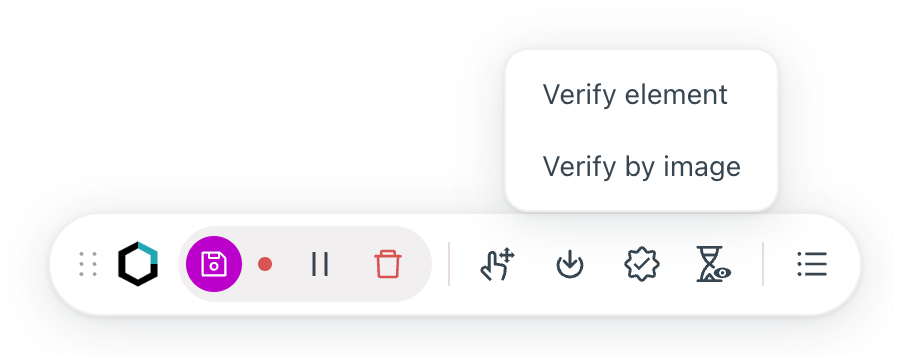
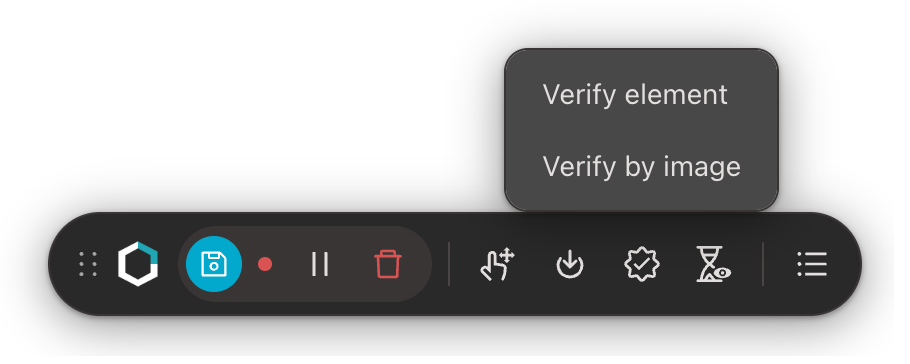
Then choose what to check:
- Attributes: tick one or more properties and choose how to compare each one, such as equals, contains or does not contain. Number values can also use greater than, less than, at least and at most.
- Exists: the element is on the page.
- Doesn't exist: the element is not on the page.
Verify by image
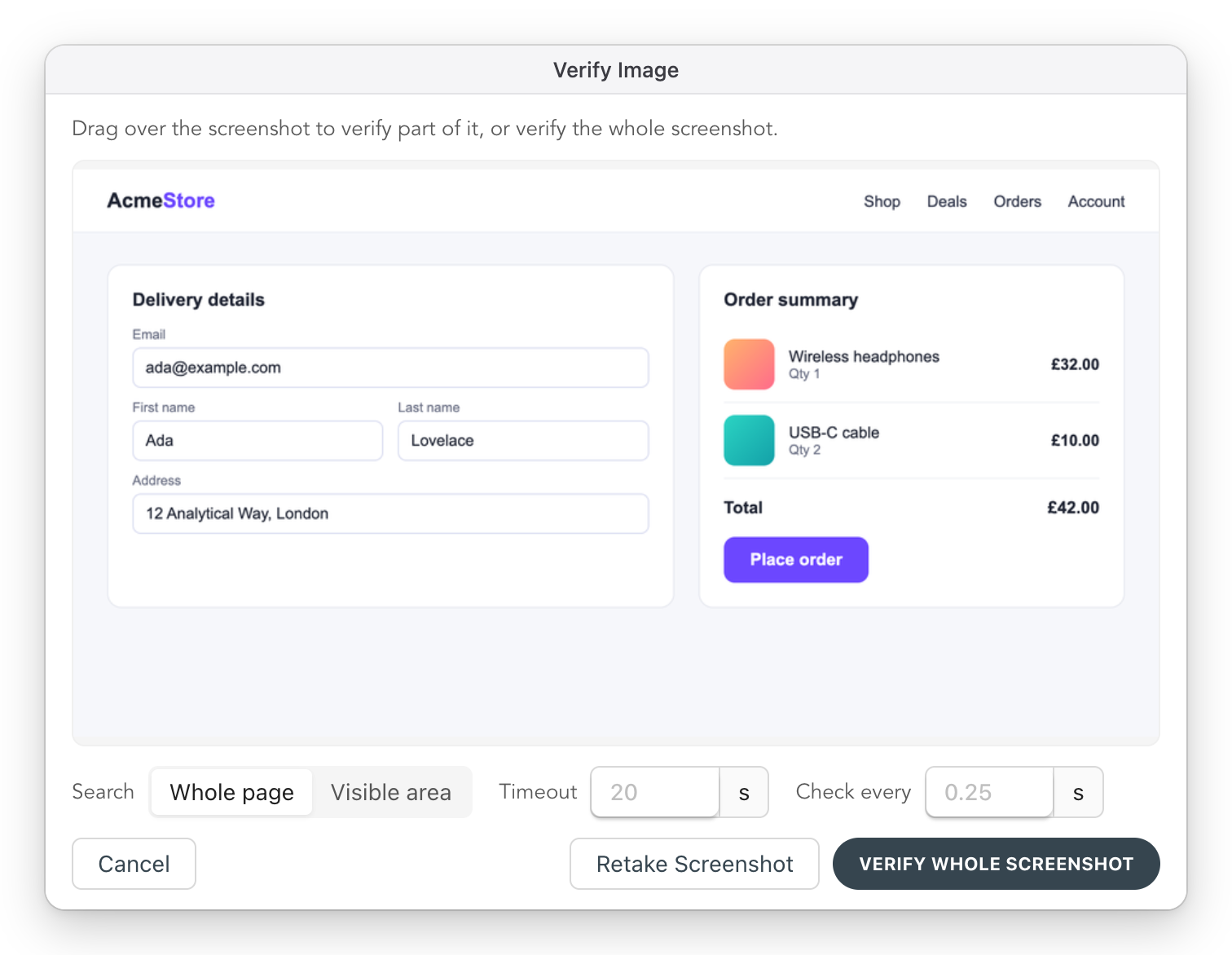
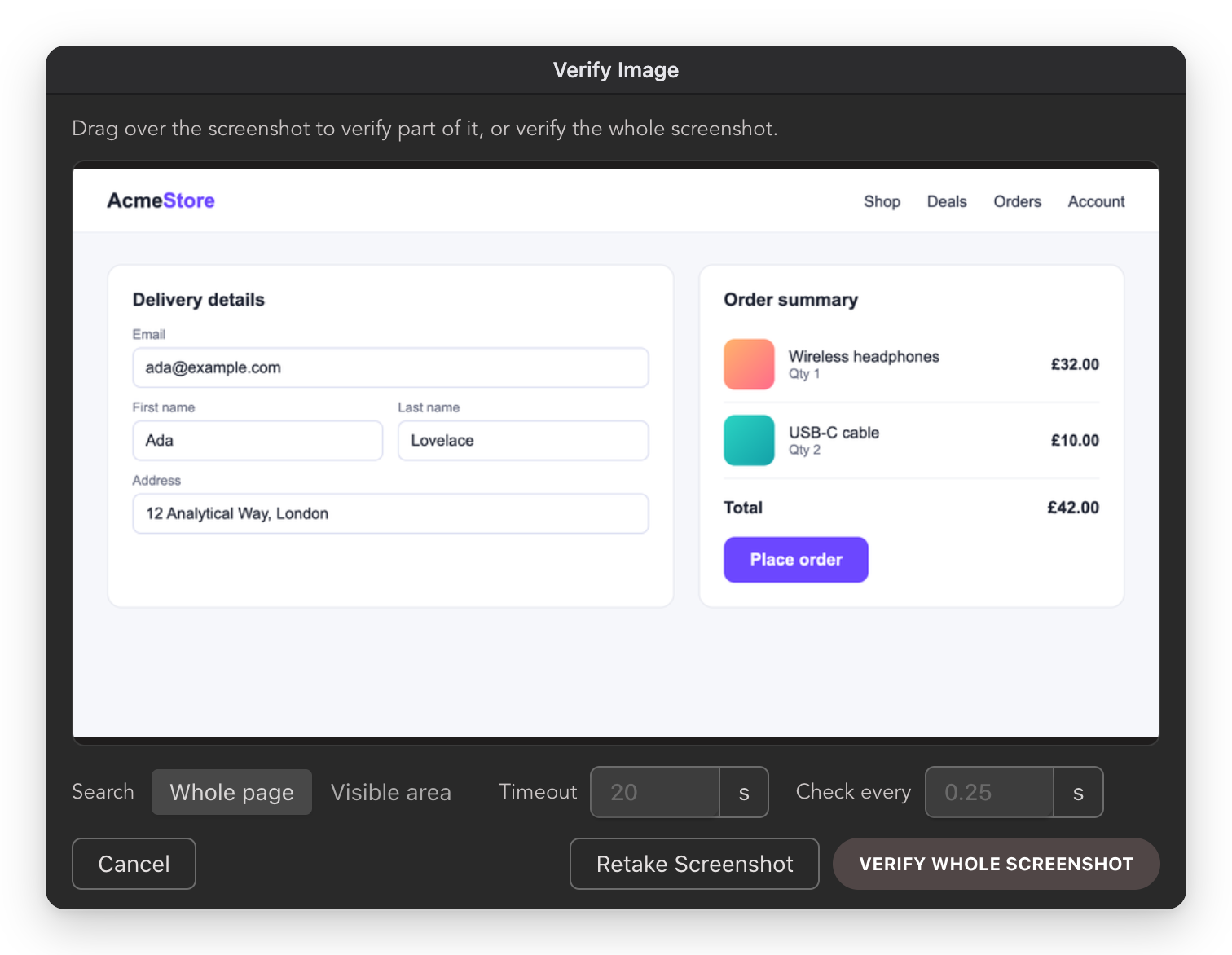
Choose Verify > Verify by image. A screenshot of the page opens.
- Drag over the screenshot to verify part of it, or verify the whole screenshot.
- Choose whether to search the Whole page or only the Visible area when the test runs.
Tip
Image verification works best on large, distinctive areas. For small text, verify the element's text attribute instead.
Store a value
Click Store, pick the element, and tick the attributes to save, such as its text. Each one is stored in a test variable that later actions can use.
Hover over an element
Some menus only open while the pointer is over them, and moving the mouse is not recorded. Click Hover and pick the element that opens the menu, then click the menu item as usual. The hover action moves the pointer over that element when the test runs, so the menu opens before the next action.
Wait
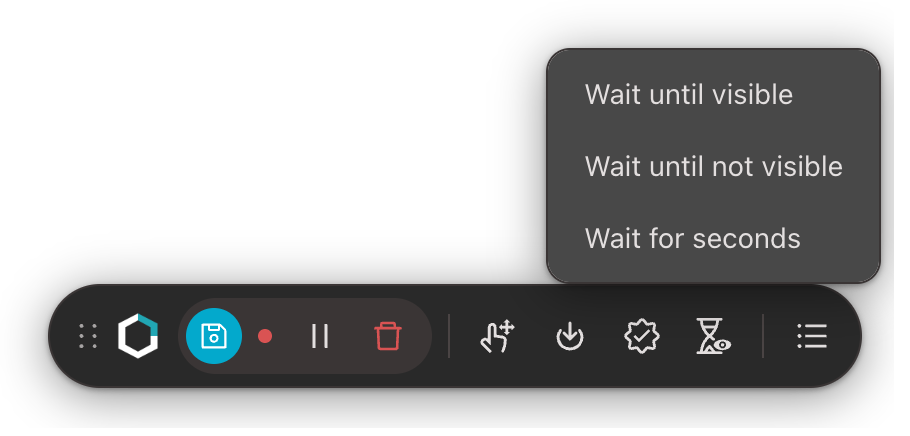
Click Wait and choose:
- Wait until visible: wait for an element to appear, such as a results list.
- Wait until not visible: wait for an element to go away, such as a loading spinner.
- Wait for seconds: wait a fixed time. Prefer waiting for an element, which is faster and more reliable.
For how timeouts are chosen when a test runs, see Wait Strategies and Timeouts.
Finish or cancel
- Click Finish to add the recorded actions to your test, then review and save the test.
- Click Cancel and confirm to discard the recording.
How elements are found
Each recorded element is saved with several ways to find it, so a test keeps working when the page changes:
- Selectors: ID, name, CSS selector, XPath and link text. Tag name, class name and partial link text are also saved when they identify the element on their own.
- An image of the element, used to find it if its selectors stop matching.
When the test runs, UMAI briefly waits for the recorded selectors to agree on one element before acting, and uses the element image to heal an action whose selectors no longer match.
Platform notes
macOS
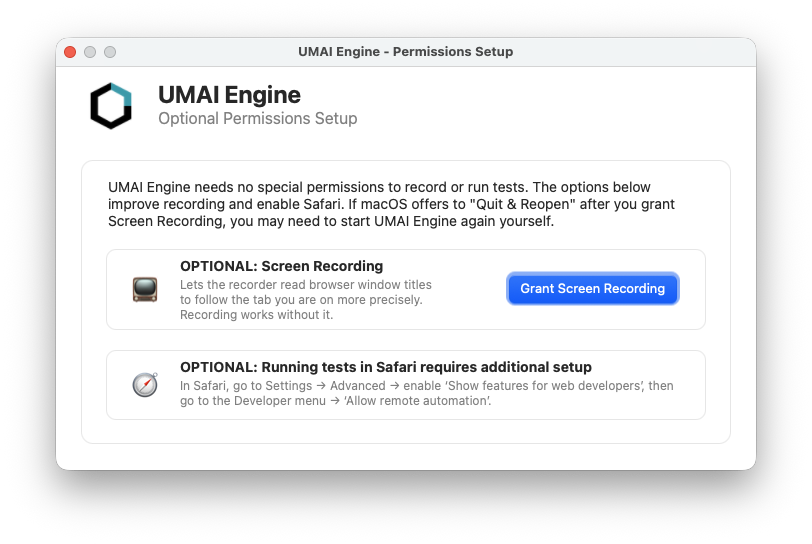
No macOS permissions are required to record or run tests.
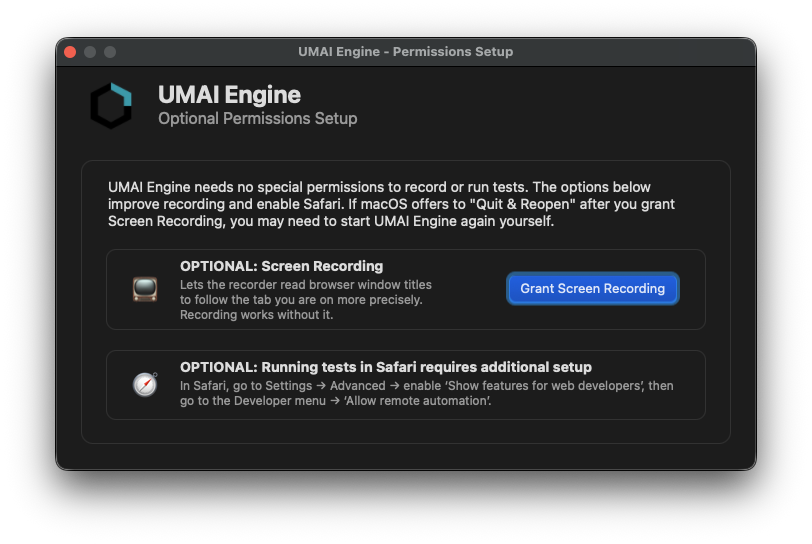
- Screen Recording is optional. It lets the Recorder read browser window titles to follow the tab you are on more precisely. Recording works without it.
- The permissions setup opens by itself the first time UMAI Engine starts, if Screen Recording is not granted. To open it later, go to Profile, open Advanced and click Check Permissions.
- Running tests in Safari needs remote automation turned on: in Safari, go to Settings > Advanced, enable Show features for web developers, then choose Develop > Allow Remote Automation.
Windows
- The recorder toolbar needs the Microsoft Edge WebView2 Runtime. It is usually installed already, but may need installing on Windows Server. See System Requirements.
Limitations
- Only the Interactive Browser is recorded. Actions in other browser windows are not.
- Moving the pointer is not recorded. Add a Hover action for menus that open on hover.
- CAPTCHAs and other bot checks cannot be completed by a test. Use a test environment that disables them.