Run Command
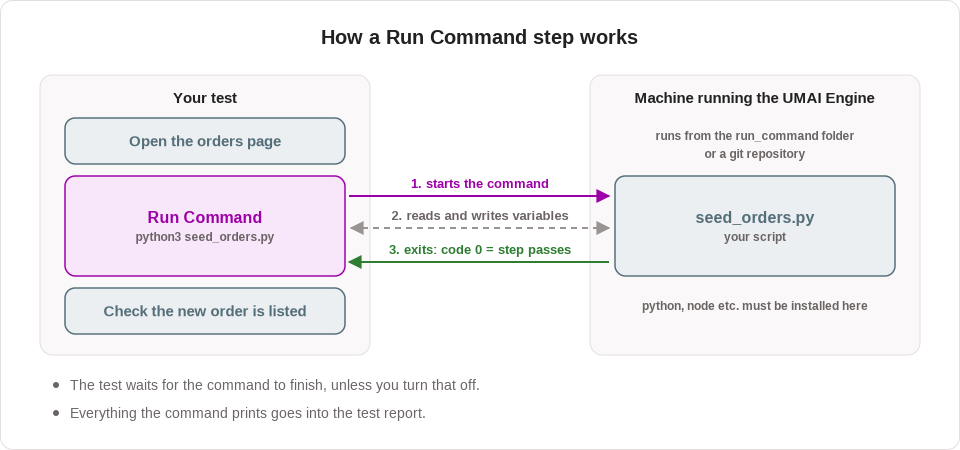
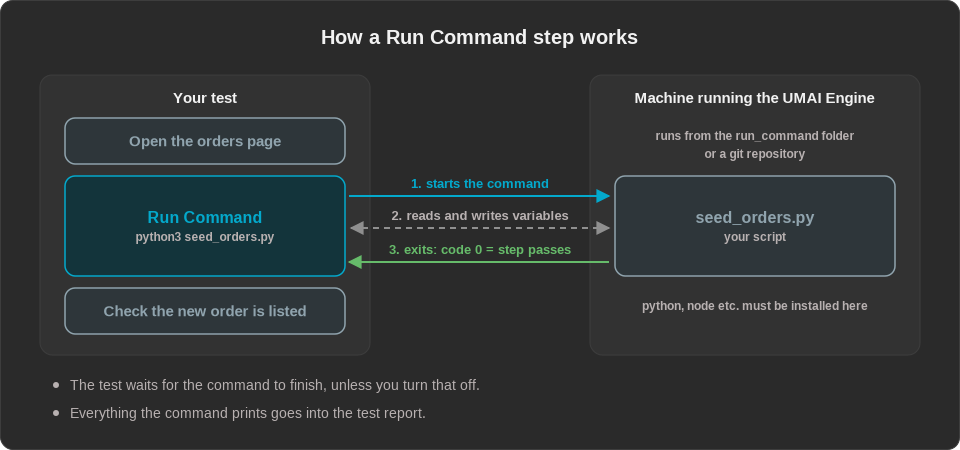
The Run Command action runs a command or script on the machine running the UMAI Engine, as a step in your test. Use it to prepare test data, call a tool UMAI doesn't have an action for, or work out a value the rest of the test needs.
Before you start
- The command runs on the machine running the UMAI Engine - your machine for tests run from the Workbench, the container for tests run in a pipeline. Whatever the command needs (python, node etc.) has to be installed there.
- Only run commands and scripts you trust. A script run by UMAI can read any variable the test can see, including environment and dataset variables, and anything it prints shows up in the test report.
Quick start
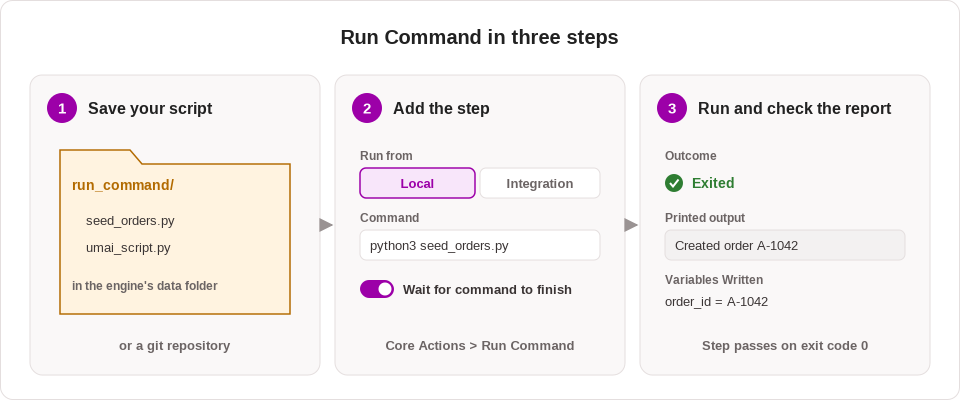
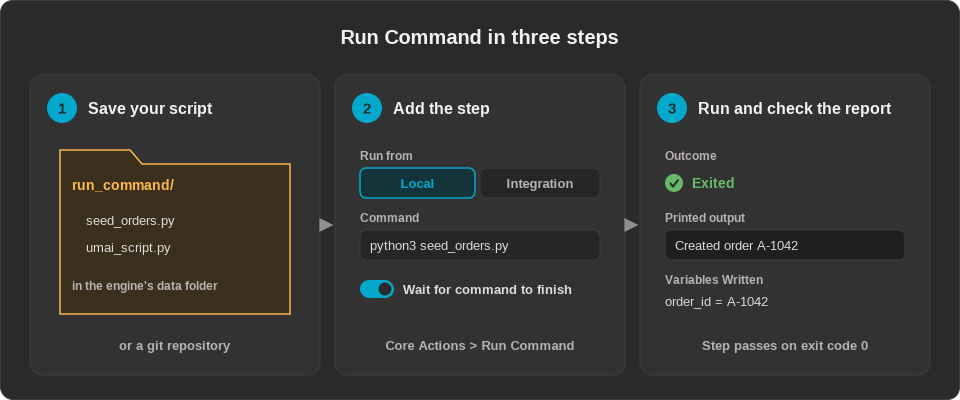
This example runs a script that creates an order and hands its id back to the test, so later steps can use it.
1. Save your script
Save your script in the engine's run_command folder, along with the umai_script helper - umai_script.py or umai_script.js - which lets it read and write UMAI variables.
%LOCALAPPDATA%\umai\data\run_command
~/Library/Application Support/umai/data/run_command
~/.local/share/umai/data/run_command
/home/browser/.local/share/umai/data/run_command
Then save this script there as seed_orders.py (or seed_orders.js):
from umai_script import UmaiScript

order_id = "A-1042"  # Create the order through your API or database here
print(f"Created order {order_id}")

UmaiScript().set_variable("order_id", order_id, source="test")
const { UmaiScript } = require("./umai_script");

async function main() {
  const orderId = "A-1042"; // Create the order through your API or database here
  console.log(`Created order ${orderId}`);

  await new UmaiScript().setVariable("order_id", orderId, "test");
}

main();
Tip
Your script can live in a git repository instead. See Setting up an Integration.
2. Add the step
- Open the test in the Workbench and add a test variable called
order_id. A script can only write to variables that already exist. - From the Core Actions section, drag Run Command into the test, and select it.
- Leave Run from on Local.
- Set Command to
python3 seed_orders.py(ornode seed_orders.js). - Save the test.
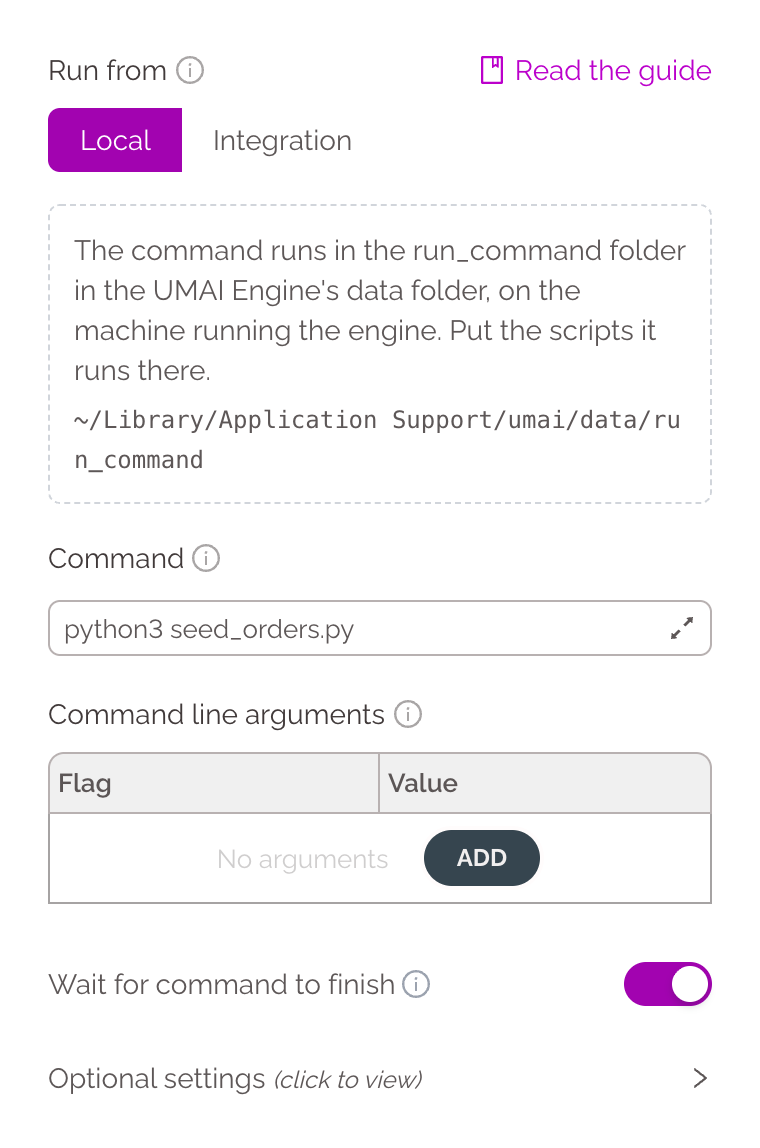
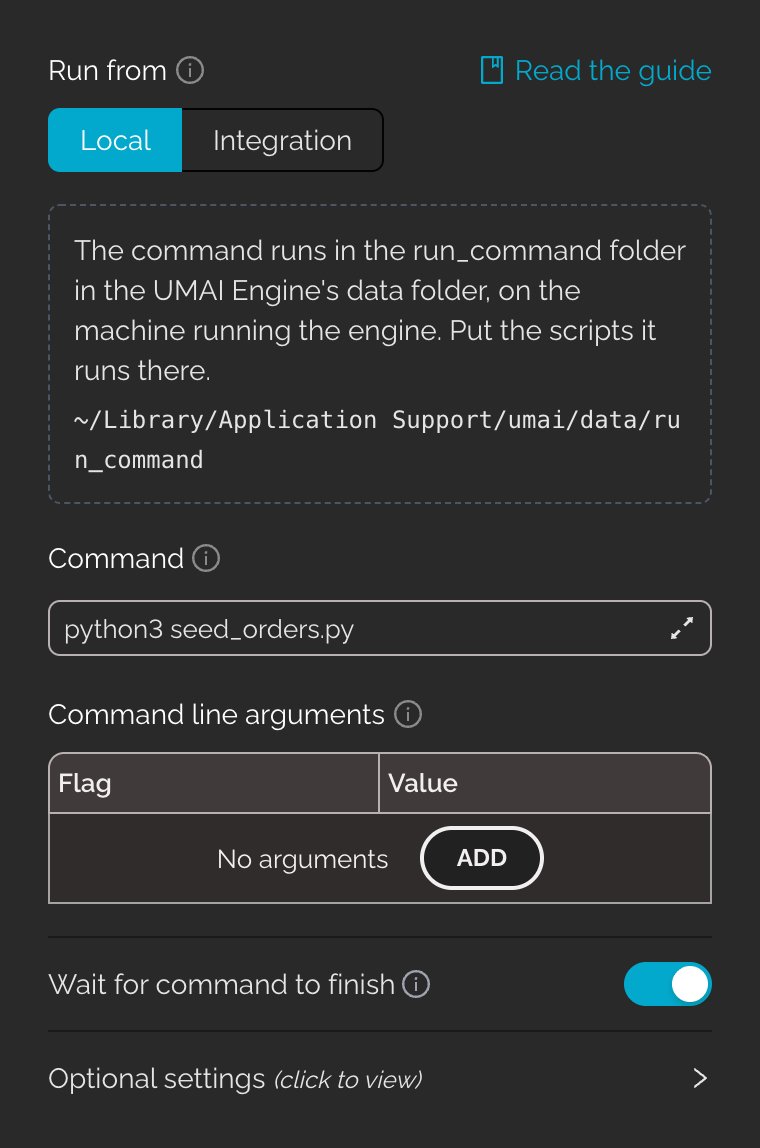
Later steps can now use the order_id variable like any other.
3. Run it and check the report
Run the test. The step passes if the script exits with code 0. Open the Run Command step in the report to see:
- Outcome - Exited when the script finished by itself.
- Printed output - everything it printed, e.g.
Created order A-1042. - Variables Written -
order_idand the value the script gave it.
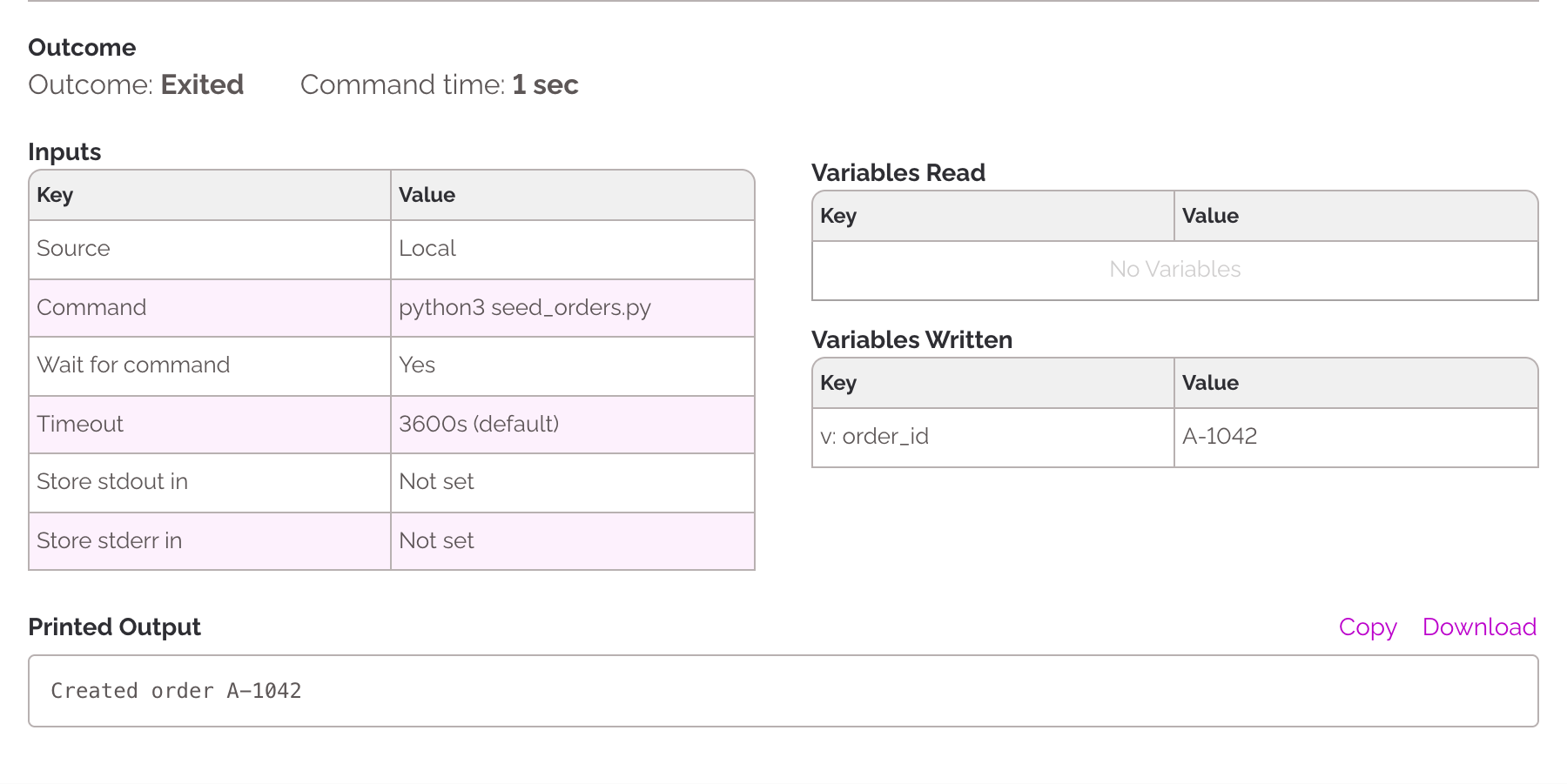
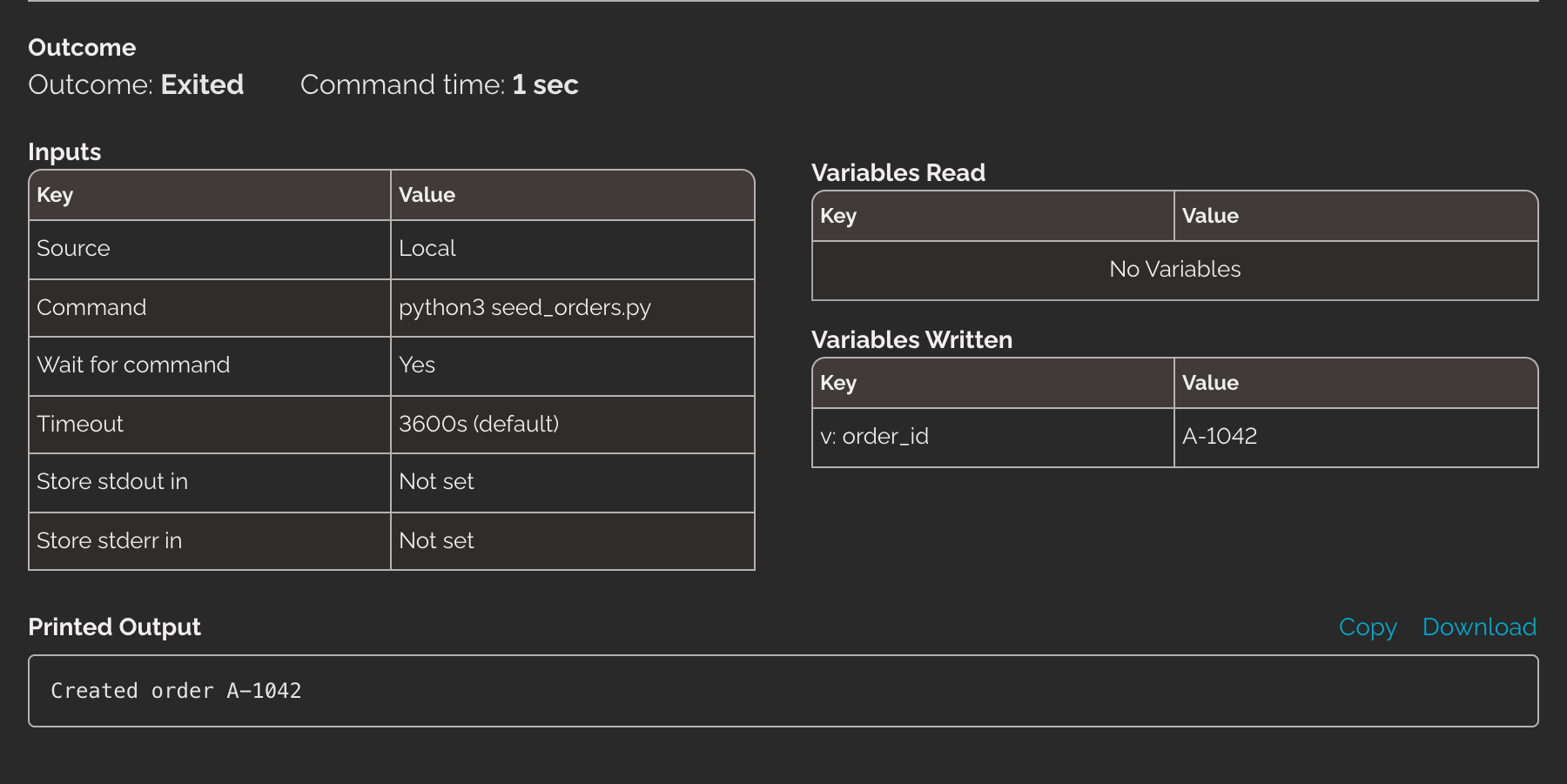
Something not right? See Troubleshooting.
Next steps
-
Every setting, running scripts from a git repository, passing arguments, and why pipes and
$VARIABLESneed a shell. -
Let the test carry on while a slow command runs, then wait for the values it writes.
-
Read and write variables from Python or JavaScript, handle errors, or talk to UMAI from Bash, PowerShell or any other language.
-
What the report shows, best practices, and fixes for common errors.