Background Commands
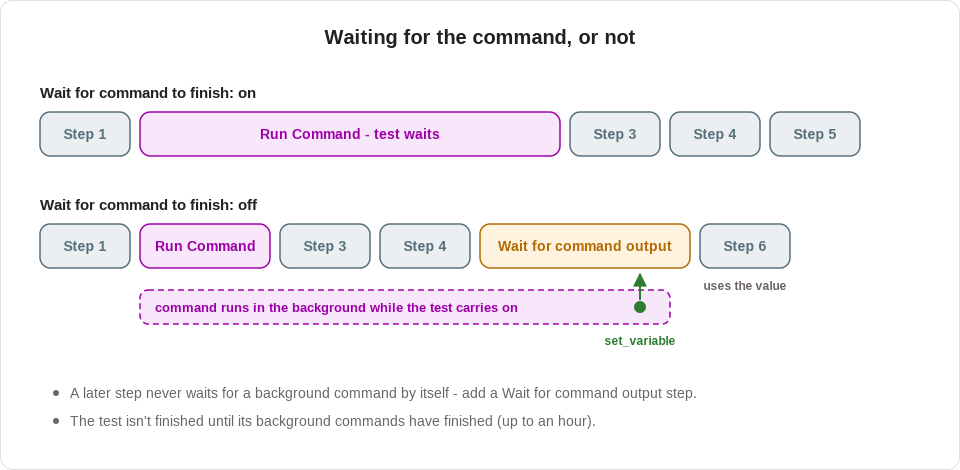
By default a test waits for each Run Command step to finish. Turn Wait for command to finish off and the command runs in the background while the test carries on, then use a Wait for command output step to pick up its results.
Wait for command to finish on
This is the default, and works like any other UMAI action - the test waits for the command to finish before it moves on to any later action.
- If the command exits with code
0, the step passes. - If it exits with any other code, crashes or times out, the step fails, and so does the test.
Running a command in the background
With Wait for command to finish off, the step returns straight away and the command keeps running while the rest of the test carries on. This is useful for something slow you don't need straight away, like starting a service or generating a large data file.
- A background command can run for up to 3600 seconds (one hour). The Timeout setting isn't used.
- If the command fails - a non-zero exit, a crash or a timeout - the step that started it is marked failed, and the test stops after the step that's running at the time.
- When the test finishes, UMAI waits for any background command that's still running to finish (up to its timeout). If the test failed, they're stopped straight away instead and show as Cancelled in the report.
A background command lasts as long as the run that started it
A background command belongs to the run that started it - a full test run, or a run from the Workbench. It can't outlive that run, and another run can't use it:
- The run isn't finished until its background commands have finished. After its last step, the test waits for them, for up to an hour from when each one started.
- If the run fails or is stopped, its background commands are stopped with it.
So a background command only lets the test carry on with other steps while it runs. It can't keep something running for a later test, or for a later Workbench run. For that, the command has to start a separate process and exit (see Starting a process that outlives the run).
While a test is waiting for its background commands at the end, it still counts as running. In a suite run in parallel, it keeps its place - with 4 tests in parallel and one test waiting an hour for its command, the rest of the suite runs on the other 3 for that hour. Run in sequence, the whole suite waits.
To use a value a background command produces, have the script write it to a variable with set_variable (see Scripts and Variables), or name a variable in Store stdout in or Store stderr in, which is written as soon as the command exits. Then add a Wait for command output step before the step that needs it.
Warning
A later step doesn't wait for a background command by itself - it uses whatever value the variable has at that moment. Always put a Wait for command output step in between.
Processes your command leaves running
If your command starts a separate process and then finishes, UMAI leaves that process alone. If your test doesn't clean it up, it keeps running until it shuts itself down, even after the end of your test, on every platform.
UMAI only stops a command and everything it started when the command itself is still running and UMAI has to stop it: when its timeout runs out, or when the test is cancelled or fails. If you start something that should only last as long as the test, such as a local server, stop it yourself in a later step.
Starting a process that outlives the run
You can use this on purpose to keep something running after the run ends, e.g. a local server you want to use across several Workbench runs. Have the command start the process detached and then exit straight away:
- macOS and Linux:
sh -c "nohup python3 server.py > server.log 2>&1 < /dev/null &" - Windows:
powershell -NoProfile -Command "Start-Process python -ArgumentList 'server.py' -WindowStyle Hidden -RedirectStandardOutput server.log -RedirectStandardError server.err"
Leave Wait for command to finish on - the command finishes as soon as the process has started. A few things to know:
- It can't read or write UMAI variables. Only the command UMAI started can talk to UMAI, and only while it's running. The detached process still has
UMAI_SCRIPT_TOKENset, sois_available()returnsTrue, but nothing is listening - everyget_variableorset_variablecall fails. Pass it anything it needs as command line arguments, and don't use it for values a later step has to wait for. - Send the process's output to a file, as in the examples. Once the command exits, UMAI stops reading its output, so anything the process prints after that doesn't reach the report.
- The command finishes before the process is ready. If the next step needs the server to be up, have your command wait until it is, e.g. with a start script that launches it, checks it's answering, and only then exits.
- UMAI never stops it - not when the test ends, fails or is stopped, and not when the Workbench closes. Stop it yourself, with a later step or by hand.
- Running the step again starts another copy. Have your start script check whether the process is already running first, e.g. if a second server would fail because its port is in use.
- In a pipeline, the process carries on into the rest of the suite, and into later tests, until something stops it.
How many commands can run at once
One engine runs at most 64 commands at the same time, counting every test it's running in parallel - so in a suite run, the limit is shared by every test in the suite, not set per test. Of those, at most 32 can be running from an integration, as each one holds a copy of its repository until it finishes. Commands that have finished, and processes they left running, don't count.
A Run Command step that would go over a limit isn't queued - it fails straight away, without running the command:
Cannot start a script: the limit of 64 concurrently running scripts has been reached.
This mostly matters for background commands, which keep their place until they finish. If a suite starts a lot of them, make sure each one finishes as soon as its work is done, as a background command can hold its place, and its test's place in the suite, for up to an hour.
Wait for command output
The Wait for command output action pauses the test until a command running in the background has written the variables you choose.
- From the Core Actions section, drag Wait for command output into the test, after the Run Command step and before the step that needs the value.
- Under Variables, add each variable to wait for.
- Optionally set a Timeout in seconds,
1 - 3600, or use a variable.
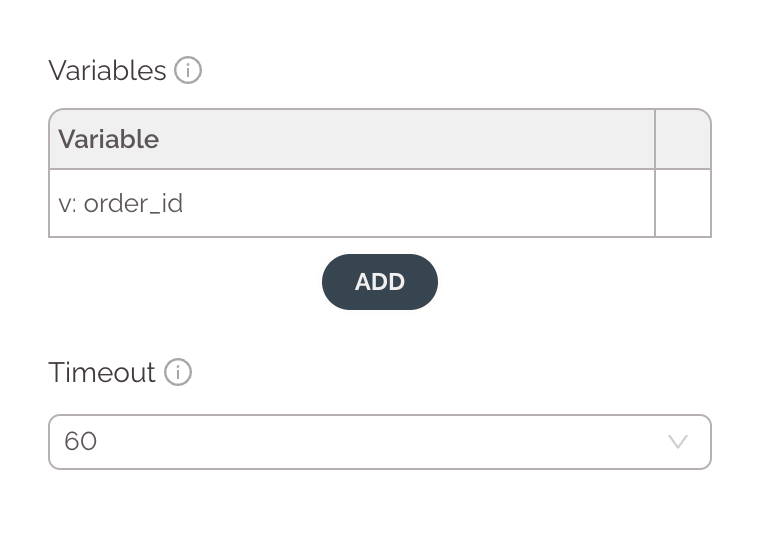
The step carries on as soon as a command in this test has written all of the variables, either with set_variable or through Store stdout in / Store stderr in when it exits. A write made before the step started counts, so it doesn't matter if the command was quick. A value the variable already had before any command wrote it doesn't count.
The step doesn't care which command wrote a variable. If several background commands are running, it carries on as soon as any of them has written the variables it's waiting for. If you need a value from one particular command, make sure that command is the only one that writes to that variable.
The step fails if:
-
the timeout runs out first:
'shipping_status' was not written within 60 seconds.
-
or no background command is left running that could still write the variables:
No command still running can write 'shipping_status': none of this test's commands wrote it.
With no timeout, the step waits for as long as any background command is still running.
Running commands from the Workbench
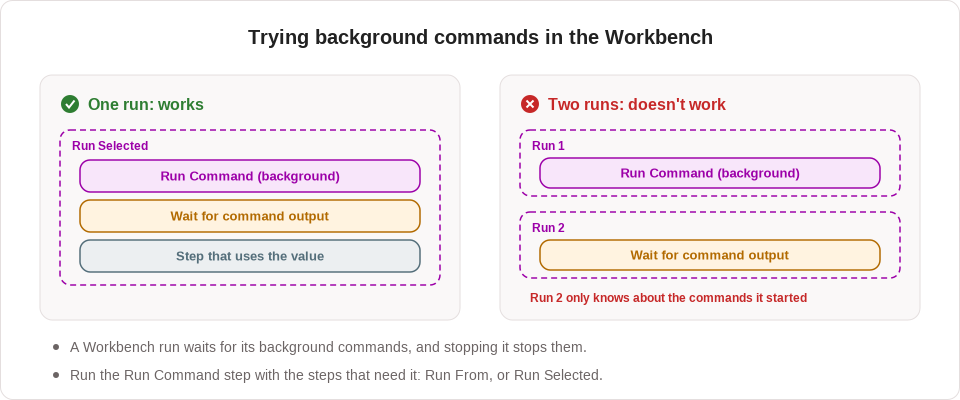
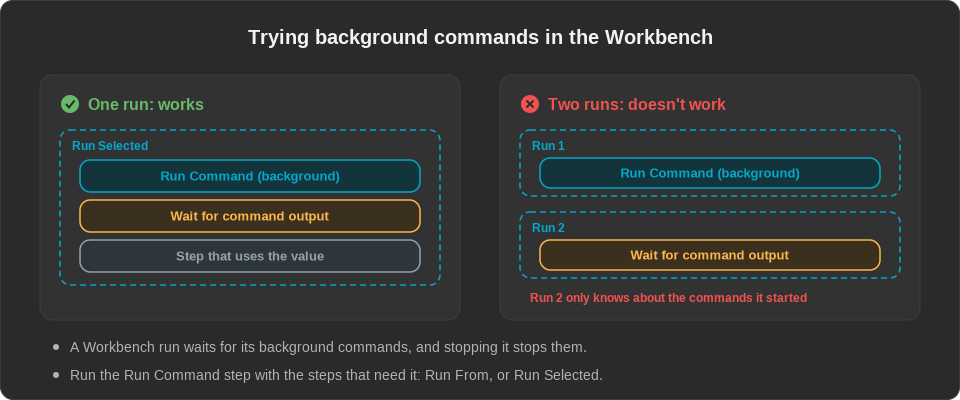
With the interactive browser running, you can right-click an action in the Workbench and choose Run From, Run To or Run Selected. Each of these is a separate run, and works like a short test run: a background command lasts only as long as the run that started it.
You can't start a background command in one run and use it in the next
Say your test starts a local server with a background Run Command, and the next three steps use it. You can't run just the Run Command step to start the server, then run the three steps against it:
- The run with the Run Command step in it doesn't finish while the server is running. The Workbench stays busy, for up to an hour, and you can't start another run in the meantime.
- If you stop that run, the server is stopped with it.
Instead, either:
- run the Run Command step and the steps that need it in the same run: right-click the Run Command step and choose Run From, or select it along with the steps you want to try and choose Run Selected.
- or have the command start the server as a detached process and exit. The server then keeps running after the run ends, so you can start it once and run the other steps as often as you like. You have to stop it yourself when you're done.
- Each run starts fresh. A run only knows about the commands it started itself. If you run a Run Command step on its own, then run its Wait for command output step on its own, the wait fails with No command still running can write 'X' - even though the first run's command wrote the variable.
- A run doesn't finish until its background commands do. The Workbench waits for any background command still running before it reports the run as finished, for up to an hour, even if every step has finished.
- Stopping the run stops its commands. Stopping the run, stopping the interactive browser or closing the Workbench stops every command the run started, along with anything they started.
- The printed output isn't shown in the Workbench. Each step only shows whether it passed and how long it took. To see what a command printed while you're building the test, name a variable in Store stdout in or Store stderr in and check its value in the Variables panel. The full output is in the report when you run the whole test with Run Test.
- Variable values carry over, but test variables aren't saved. Values a script writes to test variables show in the Variables panel and are used by your next Workbench run, but aren't saved to the test. Values written to global and environment variables are saved, the same as for any other action, even if the run failed or was stopped.
Building a test that uses a background command
- Run the command and the steps that need it together. Include the Run Command step in every run that needs its command running or its values - use Run From on it, or select it along with the steps you want and use Run Selected. Never run the wait, or a step that relies on the command, on its own.
- Start with the command waited for. Build the step with Wait for command to finish on first. The step's pass or fail, and the variables it writes, tell you the script works. Turn it off once the rest of the test is working.
- Make the script quick to finish while you're building. Every Workbench run waits for its background commands to finish, so a long-running script makes every run slow. Pass an argument that cuts it short, e.g. a
--count 1instead of--count 1000, while you're building the test. - Set a timeout on the wait. Without one, a Wait for command output step whose command never writes the variable sits there until the command ends.
- Test the script on its own first. Run it from a terminal before adding it to a test. If it talks to UMAI, use
is_available()(or checkUMAI_SCRIPT_TOKEN) so it can fall back to default values when it isn't run by UMAI. - Use test variables while you try things out. Writing to a global or environment variable from the Workbench changes it for everyone who uses it.